

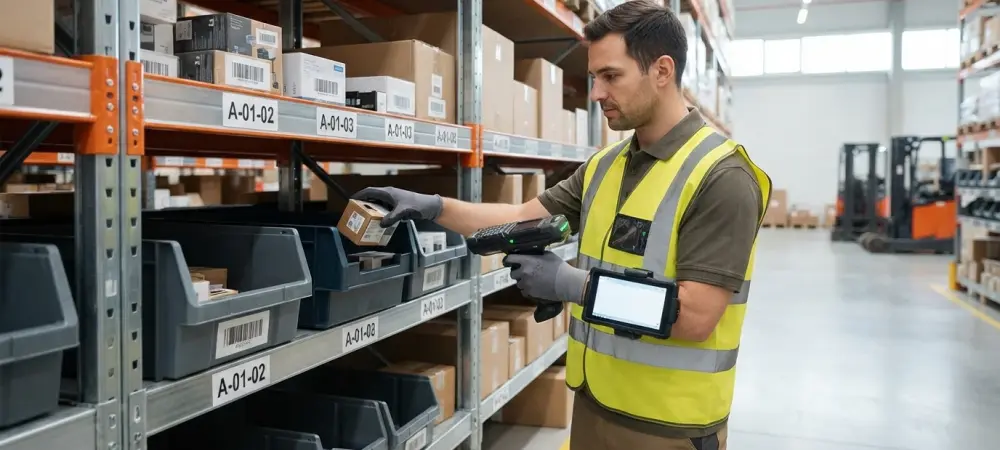
Most picking errors in Business Central occur when a picker pulls a look-alike item or visits the wrong bin, but the Warehouse Insight app allows businesses to replace paper lists with a scan-to-confirm workflow. This guide explains how to configure and execute a picking process that requires bin and item scans to ensure accuracy. Utilizing digital validation ensures that every item handled at the shelf matches the warehouse record in real time. Prerequisites include a functioning installation of Microsoft Dynamics 365 Business Central and the Warehouse Insight extension. Additionally, warehouse staff must have access to mobile scanning devices, and physical bin locations must be labeled with readable barcodes. By implementing these controls, organizations can virtually eliminate the common human errors associated with visual identification and manual data entry.
Configure and Execute Scanned Picks
1. Choose a Method
The first step involves determining the specific quantity entry method within the Warehouse Insight settings area of Business Central. This configuration defines how the picker interacts with the handheld device during the scanning process. Several options exist to balance speed and accuracy. One can set the system to default to the remaining quantity, which is ideal for experienced pickers performing full-case picks. Alternatively, the system can default to zero to force manual quantity entry for every line. For high-value or highly sensitive inventory, the “one scan per unit” setting requires a unique scan for every individual piece. Verify the chosen setting by opening a test pick on a mobile device to confirm that the input behavior matches the expected workflow.
2. Prepare the Accounts
Ensure that Warehouse Insight is installed as an extension from the Microsoft Marketplace and that user profiles are properly configured within Business Central. Supervisors should verify that the bin scan requirement is toggled on in the configuration settings to prevent pickers from bypassing the location check. This setting ensures that the mobile application will not allow item scans until a valid bin has been identified. Check the individual user permissions to ensure staff have the appropriate rights to register picks and move inventory. Finally, test the wireless connection in the warehouse to ensure real-time updates are flowing between the mobile devices and the ERP system without interruption.
3. Identify the Bin
The picker must walk to the physical location suggested by the device and scan the bin barcode. This step confirms the picker is at the correct physical coordinate before they attempt to pull any stock. If the picker scans the wrong bin, the device will reject the scan and display an error message, preventing any incorrect data from reaching the pick document. This physical check eliminates errors caused by pickers misreading labels or accidentally pulling from adjacent locations. Only after a successful bin scan will the application unlock the next field for item verification. If a bin is inaccessible or empty, the picker should notify a supervisor to adjust the warehouse record accordingly.
4. Verify the Item
Once the location is confirmed, scan the item barcode to confirm that the physical product matches the pick line on the digital document. For lot-tracked inventory, the picker may scan the lot number barcode instead to satisfy both the item and lot verification in a single motion. Successful validation is indicated when the device accepts the scan and highlights the line as verified. An incorrect item scan will trigger an immediate alert at the shelf, notifying the picker of the discrepancy before the item is removed from the bin. This prevents look-alike items from being staged for shipment and ensures the integrity of the outbound order.
5. Confirm the Quantity
Enter or accept the quantity picked based on the method chosen in the initial configuration step. If using the “one scan per unit” setting, repeat the item scan for every individual piece until the line requirement is met. For bulk picks, the user can manually type the quantity into the keypad if the system is configured to allow manual entry. Once the quantity is entered and confirmed, the line updates in Business Central in real time, allowing the picker to move to the next item on the list. The document status updates automatically, providing supervisors with visibility into the progress of the picking wave as it happens.
Recap of the Scanning Process
- Select the appropriate quantity entry method in settings.
- Enable bin and item scan requirements for user groups.
- Scan the bin barcode to validate the physical location.
- Scan the item or lot barcode to verify product identity.
- Submit the quantity to update Business Central records instantly.
Practical Advice for Reducing Errors
To further minimize mistakes, utilize the Tile View or Card View within Warehouse Insight to display item pictures directly on the scanner screen during the pick. This visual aid helps pickers distinguish between items in similar packaging or those with nearly identical part numbers. If a bin contains insufficient stock to complete a line, use the line-splitting feature to fulfill the remaining balance from an alternate location without canceling the original document. This ensures that the pick remains fluid while maintaining accurate inventory levels across different zones.
Standardizing barcode placement on shelving and products is also critical for speed. Ensure all bins are labeled with clear, readable barcodes, as the system supports both linear and 2D formats to suit any racking style. For items that arrive from vendors without barcodes, use the internal labeling features of Business Central to generate labels during the receiving process. Consistent labeling practices combined with scan-to-confirm workflows provide the highest level of accuracy for warehouse operations. Monitoring the error logs can also help identify specific items or locations where pickers frequently encounter issues, allowing for proactive management of the warehouse layout. These combined strategies ensure that the picking process remains efficient and error-free throughout the entire production cycle from 2026 to 2028 and beyond.