

Dominic Jainy is a seasoned IT professional whose expertise lies at the intersection of artificial intelligence, machine learning, and the practical application of emerging technologies. With a career dedicated to understanding how complex systems can be refined for human use, he has become a leading voice in the evolution of software accessibility. In this discussion, we explore the nuances of the latest Windows 11 experimental build, focusing on how new features like screen tinting, HID braille support, and voice isolation are reshaping the user experience for those with specific visual and auditory needs.
How does the new screen tint feature differ from traditional blue light filters in terms of reducing eye fatigue? Could you walk through the customization process, specifically how users should balance the six color presets against intensity levels to manage light sensitivity during a long workday?
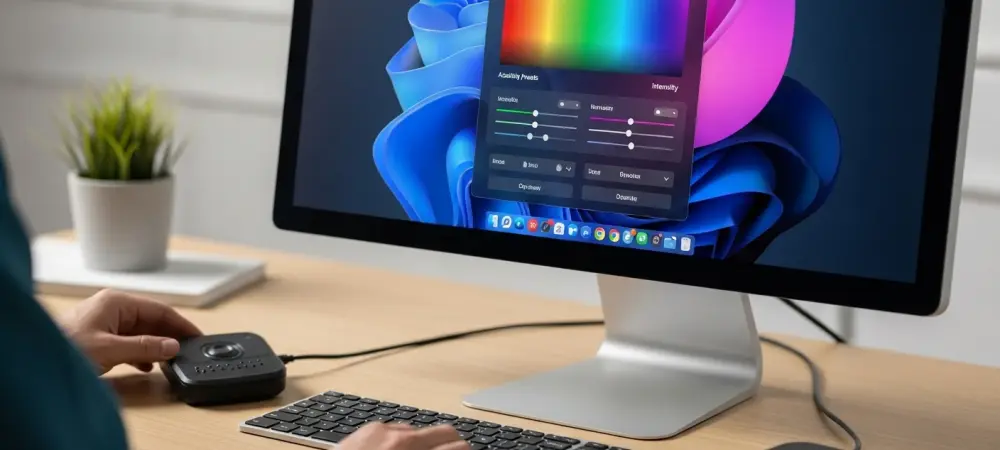
The primary distinction is that while a night light focuses on warming the display to limit sleep-disrupting blue light, the screen tint feature is designed to soften the overall intensity of the screen throughout the day. It acts as a color overlay that reduces the harshness of bright, saturated screens which often lead to light sensitivity after hours of use. To get started, you navigate to the Vision section within the Accessibility settings or simply hit the Win + U shortcut to bring up the menu. Users can select from six different color presets or define a custom shade, then use a strength slider to move from a very subtle wash to a much higher intensity. Finding the right balance requires testing these presets against your specific office lighting; for many, a lower intensity setting provides enough relief to prevent headaches without distorting the colors needed for professional tasks.
What trade-offs must users consider when choosing between screen tints and standard color filters, given that only one can be active at a time? How should someone determine which tool better suits their specific visual needs or professional tasks when toggling these settings?
The most significant trade-off is the technical limitation where turning on the screen tint will automatically disable any active color filters, and vice versa. This means users must decide if they need a general reduction in screen intensity or the specific color adjustments provided by filters, such as those used for color blindness. If your professional work requires high color accuracy, a subtle screen tint might be less disruptive than a heavy color filter, but those with specific color vision deficiencies will likely need to stick with the filters. A good way to determine the best tool is to monitor your physical reaction during a long session; if you feel a “burning” sensation or eye strain, the tint is likely the better choice, whereas if you struggle to distinguish elements on the screen, the color filter remains essential. It is a matter of prioritizing comfort against clarity depending on the task at hand.
Moving toward the HID standard for refreshable braille displays simplifies the setup process significantly. How does this plug-and-play capability, particularly during the initial out-of-box setup, change the level of independence for users who are deaf-blind when they are configuring a brand-new computer?
Adopting the Human Interface Device (HID) standard is a massive leap forward because it removes the technical barriers that previously required sighted assistance or complex driver installations. For users who are deaf-blind, the ability to simply connect a device like the Orbit Reader 20 or Freedom Scientific Focus 40 via USB and have it work immediately is transformative. This plug-and-play capability now extends to the initial Out-of-Box Experience, or OOBE, meaning a user can configure their entire PC independently from the very first welcome screen. By supporting this open industry standard, Windows allows for wireless Bluetooth pairing or wired USB connections without any additional software, granting users full agency over their personal technology from the moment they unbox it. It effectively turns a specialized assistive tool into a standard peripheral that is as easy to use as a keyboard or a mouse.
Recent system updates addressed several disruptive issues, including recurring taskbar refreshes and failures with the Win+X shortcut. In terms of overall system health, what is the practical significance of improving the reliability of recovery commands like “dism /restorehealth” for users who encounter deep-level errors?
When a system experiences deep-level errors, such as the cyclical explorer.exe crashes that cause the taskbar to blink and refresh repeatedly, the reliability of recovery tools becomes the final line of defense. Improving the “dism /online /cleanup-image /restorehealth” command ensures that when a user attempts to repair a corrupted system image, the process actually completes instead of hanging or failing. This is practically significant because it prevents the need for a full, time-consuming OS reinstallation, which can be a daunting task for anyone, especially those relying on specific accessibility configurations. Strengthening these background services, alongside fixes for the Win+X shortcut and SSDP notifications, creates a much more stable environment where the OS can heal itself. For the average user, this translates to fewer “blue screens” and a system that remains responsive even when underlying files are compromised.
Voice isolation technology has been introduced to help clarify commands within voice-controlled interfaces. How does this feature effectively filter out environmental noise, and what impact does this have on the daily accuracy and frustration levels of users operating in loud or shared office spaces?
Voice isolation in Voice Access works by using sophisticated algorithms to distinguish the user’s speech patterns from the chaotic background noise of a shared environment. In a busy office, standard microphones often pick up air conditioning hums, distant chatter, or the clicking of keyboards, which can lead to misrecognized commands and “command fatigue.” By filtering out these distractions, the system ensures that a specific instruction is captured with much higher precision on the first attempt. This drastically reduces the frustration of having to repeat yourself three or four times just to open a document or send an email. For users who rely entirely on voice control for navigation, this increased accuracy is not just a convenience—it is what makes the computer a viable tool for a full eight-hour workday.
What is your forecast for the future of accessibility features in mainstream operating systems?
I believe we are moving toward a future where “accessibility” is no longer a separate category but is instead woven into the very fabric of the user interface through adaptive AI. We will likely see operating systems that can automatically detect user fatigue or environmental distractions and suggest adjustments—like changing screen tints or enabling voice isolation—before the user even realizes they need them. The shift toward industry standards like HID for braille is just the beginning of a broader movement toward universal hardware compatibility. Ultimately, my forecast is that the “standard” version of any OS will be highly modular, allowing every individual to build a sensory environment that perfectly matches their personal physical and cognitive requirements. This evolution will turn the computer into a truly inclusive portal that adapts to the human, rather than forcing the human to adapt to the machine.