

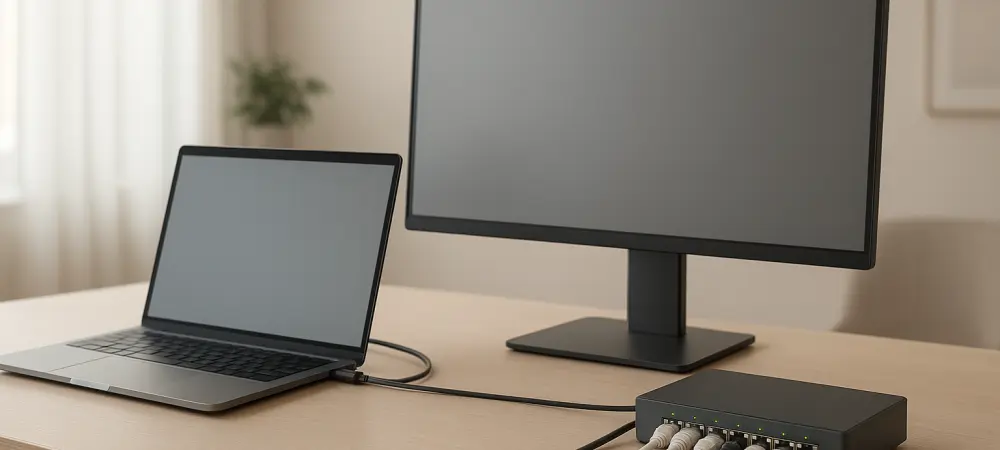
Maintaining a consistent connection to a home workstation requires pre-emptive adjustments to power management settings to prevent the host machine from entering a deep sleep. Beyond the initial configuration, the true strength of this utility lies in its ability to serve as a reliable bridge between a user and their digital life, irrespective of physical location. While many perceive this browser-based tool as a simple fix for occasional tech support, its underlying architecture supports a much more robust, permanent remote access strategy that rivals dedicated software suites. By shifting the perspective from temporary troubleshooting to a persistent connection model, professionals can ensure their primary data remains accessible. This transition effectively eliminates the anxiety associated with forgotten files or localized software licenses, as the desktop environment becomes a globally reachable node. The utility operates with minimal overhead, leveraging existing security frameworks to provide a seamless experience that allows for real-time interaction with high-performance hardware from anywhere.
Transitioning to Unattended Access
To unlock the full potential of this utility, users must move beyond the guest support model and configure their machines for unattended access. This involves registering a host computer with a specific account and establishing a permanent security PIN that acts as the primary gatekeeper for future connections. Once this setup is finalized, the host machine appears in a persistent list of available devices, allowing the owner to bypass authorization prompts and gain immediate entry to their desktop interface from any external network. Unlike the temporary codes used for remote support, which require a second person to facilitate the handoff, unattended access grants total autonomy to the user. This distinction is critical for those who need to access their home-based environments while traveling or during a commute. By bypassing the need for a manual handshake, the connection becomes an instantaneous extension of the user’s current device, effectively merging multiple hardware platforms into a single, cohesive ecosystem. Establishing this link is a proactive requirement that must be handled while physically present at the host machine to ensure all security parameters are met. Because the security protocols demand a manual setup of the PIN and the installation of a dedicated host service, a user cannot decide to enable permanent access after they have already left their home or office. Proper preparation ensures that the machine remains a reachable gateway, effectively turning a stationary desktop into a private cloud resource that is available at a moment’s notice. This localized setup process provides a layer of physical security, as it prevents unauthorized remote users from self-installing the software without direct hardware access. Furthermore, once the host service is active, it runs quietly in the background, consuming negligible system resources while maintaining a heartbeat connection to the routing servers. This reliability ensures that the workstation is always prepared to receive incoming traffic whenever the authorized user initiates a secure login sequence.
Managing Hardware and Power Configurations
A significant hurdle for maintaining a reliable remote link is the management of the host computer’s power state over long periods of inactivity. Chrome Remote Desktop cannot wake a machine that has completely powered down or entered a deep sleep state where the network adapter is deactivated by the operating system. Consequently, users must adjust their system settings to ensure the computer remains awake and connected to the internet, which may involve disabling automatic sleep timers or configuring specific power-on behaviors in the BIOS. For instance, setting a machine to automatically reboot and log in after a power failure can be the difference between regaining access and being locked out indefinitely. Additionally, ensuring that the network interface card is set to stay active even when the system is idle prevents the connection from dropping unexpectedly. These micro-adjustments create a stable foundation for remote operations, allowing the hardware to remain in a ready state for any incoming requests from secondary devices.
While keeping a machine active provides constant reachability, it does introduce certain hardware trade-offs that users must consider for long-term maintenance. For laptop users, maintaining a permanent on state can lead to increased battery wear and slightly higher internal temperatures over time if the cooling system is not optimized. It is essential to weigh these physical maintenance factors against the convenience of instant access, perhaps using scheduled wake times or third-party power management software to find a balance between availability and hardware longevity. Desktop users might face similar considerations regarding electricity consumption, though modern processors often feature low-power idle states that mitigate these costs significantly. Implementing a strategy that involves automated restarts or periodic system health checks can help preserve the integrity of the host machine. By treating the workstation as a server rather than a personal computer, users can maintain high availability while minimizing the physical stress placed on individual components.
Strategic Use Cases for Micro-Tasks
Chrome Remote Desktop excels in a niche categorized by micro-tasks, which are short, high-value interventions that do not require the heavy overhead of professional-grade software. While it may not be the ideal choice for an eight-hour shift involving intensive video editing or complex 3D modeling, it is the perfect tool for retrieving a forgotten document, checking the progress of a long-running render, or accessing a specialized application. Many professionals rely on this utility to bridge the gap between their mobile capabilities and their more powerful stationary hardware. For example, triggering a data backup or initiating a software update on a home machine can be accomplished in minutes from a smartphone or tablet. These brief sessions allow users to maintain a high level of control over their primary digital assets without needing to be tethered to a physical desk. The speed of the connection, combined with the familiarity of the native desktop environment, makes it an indispensable tool for managing complex workflows on the go.
On mobile platforms, the tool acts as a functional bridge for quick administrative actions that would otherwise require a physical commute to resolve. Although navigating a full desktop operating system on a smartphone screen can be visually demanding, the application is more than adequate for clicking through confirmation boxes or copying text via the shared clipboard. These brief sessions allow users to maintain productivity during transit without needing to carry a heavy laptop for every possible scenario. The mobile interface supports both touch and trackpad modes, giving individuals the flexibility to interact with windows and menus with surprising precision. This capability is particularly useful for students or researchers who might need to consult a local database or run a specific script that only exists on their primary workstation. By transforming a phone into a portal for a powerful desktop, the utility effectively expands the definition of mobile work, proving that hardware limitations can be overcome with the right combination of software and connectivity.
Efficiency Over Complexity
When comparing this utility to high-end remote desktop protocols, its primary advantage is its seamless integration into the existing software ecosystem. It avoids the complex network configurations and subscription costs associated with enterprise software, making it a set and forget safety net for the average user. Rather than focusing on high-latency performance or multi-monitor administrative tools, this approach prioritizes immediate availability and ease of use. The streamlined setup process removes the need for port forwarding or virtual private networks, which can often be daunting for those without an IT background. Moreover, the security model leverages encrypted connections, ensuring that data transmitted between the host and the client remains private and protected from external threats. This balance of accessibility and security makes it a preferred choice for individuals who require a dependable connection without the burden of maintaining expensive or intricate infrastructure on their personal or professional hardware.
Users who successfully implemented these remote access strategies found that the initial effort of configuring unattended settings paid dividends in long-term efficiency. They optimized their power management protocols to ensure constant reachability and integrated the utility into their daily workflows for various administrative needs. These proactive steps eliminated the friction often associated with managing multiple devices, as the primary workstation transitioned into a truly accessible cloud-like resource. Future considerations involved exploring even more granular control over network wake commands to further reduce energy consumption while maintaining the same level of instant access. By treating this browser-based tool as a serious component of a modern digital strategy, individuals moved beyond the limitations of physical space. They discovered that a well-configured connection served as a vital safety net, providing a level of freedom and flexibility that was previously reserved for those with enterprise-level resources. This evolution in usage patterns marked a shift toward a more integrated and mobile future.