

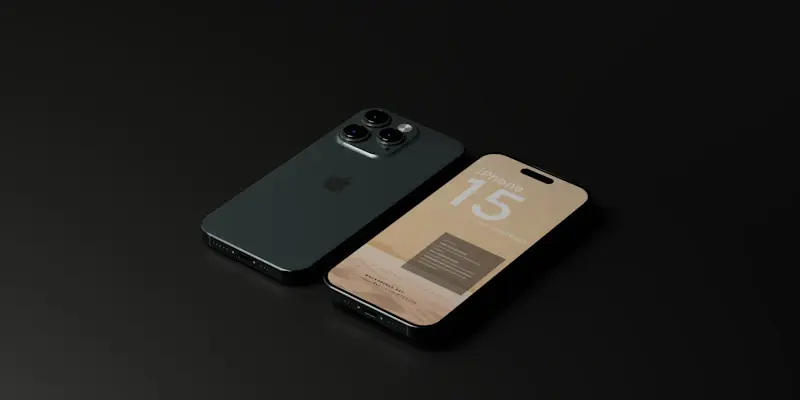
The iOS 18.4 update brings an exciting feature to the iPhone 15 Pro and iPhone 15 Pro Max, allowing these devices to access Apple’s Visual Intelligence. Initially exclusive to the iPhone 16 lineup, Visual Intelligence transforms your phone’s camera into a versatile search tool that provides detailed information on the objects it captures. This new ability promises to enhance the user experience by offering actionable insights and commands based on the camera’s input. For users who haven’t upgraded to the iPhone 16 series, this addition to the iPhone 15 Pro models is a welcome upgrade, making the devices even more powerful and versatile.
Owners of the iPhone 15 Pro and iPhone 15 Pro Max can now enjoy capabilities previously unavailable on their devices, thanks to the inclusion of Visual Intelligence in the second public beta of iOS 18.4. While this may not be a radical transformation, it renders the older iPhone models functionally closer to their newer counterparts. This article explores how to set up Visual Intelligence on the iPhone 15 Pro and details what users can do with this robust and intuitive feature.
1. Open the Action Button settings in the configuration menu
To utilize Visual Intelligence on your iPhone 15 Pro, the first step involves setting up a way to access this feature. Since the iPhone 16 models come with a dedicated Camera Control button, users of the iPhone 15 Pro need to find an alternative method. Fortunately, the iOS 18.4 update offers a solution by allowing users to repurpose the Action button for this task. This flexibility ensures that users can easily integrate Visual Intelligence into their daily routine without altering the default setup extensively.
To begin, launch the Settings app on your iPhone 15 Pro. Once the main screen appears, locate the Action Button option. This menu is crucial as it allows you to customize the functionality of the Action button situated on the left side of your device. By tapping on this setting, you will gain access to a list of potential shortcuts you can assign to the Action button. This intuitive setup process ensures that even novice users can navigate through the options and find the Visual Intelligence feature without difficulty.
2. Choose Visual Intelligence as your activity
Once you have accessed the Action Button settings, you will see a list of possible shortcuts, making it easy to configure the button according to your preferences. Scroll through the list by swiping until you locate Visual Intelligence. This feature stands out thanks to its robust capabilities, allowing your phone’s camera to act as a powerful search tool. By selecting Visual Intelligence from the list, you prepare your device to launch this feature at the press of a button.
After selecting Visual Intelligence, tap on Settings to exit the menu. From this point onward, whenever you press and hold the Action button, your iPhone will activate Visual Intelligence. This seamless integration ensures that the feature is always readily accessible, allowing you to quickly gather information on the go. Whether you are capturing text, identifying plants, or getting details on a business, the Visual Intelligence feature profoundly enhances your iPhone’s usability.
3. Employ Visual Intelligence on your lock screen (optional)
If you prefer not to dedicate the Action button to Visual Intelligence, iOS 18 offers another customization option. With the iOS 18.4 update, you can now modify your lock screen shortcuts to include a Visual Intelligence control. This addition makes it even easier to access the feature, especially for users who rely heavily on other shortcuts tied to the Action button. This flexibility ensures that every iPhone 15 Pro user can tailor their device to better suit their individual needs and preferences.
To add Visual Intelligence to your lock screen, you must enter the lock screen customization settings. This process involves editing your screen layout and selecting the control you want to customize. The update provides a Visual Intelligence control that you can place at the bottom of your lock screen. By integrating this control into your lock screen, you gain quick access to its powerful features without compromising other functions of your device.
4. Modify your lock screen to add the control
To place the Visual Intelligence control on your lock screen, begin by editing the screen layout. Tap the control you wish to customize, and then browse through the list of available options. You’ll find Visual Intelligence under the Apple Intelligence & Siri controls section. However, if you’re having trouble locating it, you can use the Search bar at the top of the screen to find the control faster. This search capability streamlines the customization process, ensuring that you can add Visual Intelligence without any unnecessary delays.
Once you have identified the Visual Intelligence option, tap the icon to add it to your lock screen. This addition is straightforward and enables you to activate the feature directly from the lock screen. Whether you place it in the bottom left corner or another accessible location, this setup ensures that Visual Intelligence remains at your fingertips. By customizing your lock screen in this manner, you maximize efficiency and take full advantage of your iPhone 15 Pro’s capabilities.
5. Experience the benefits of Visual Intelligence
The iOS 18.4 update introduces an exciting new feature to the iPhone 15 Pro and iPhone 15 Pro Max, granting these devices access to Apple’s Visual Intelligence. Previously exclusive to the iPhone 16 lineup, this technology transforms the phone’s camera into an intelligent search tool that provides detailed information about the objects it captures. This enhanced functionality aims to elevate the user experience by offering actionable insights and commands based on the camera’s input. For those who haven’t upgraded to the iPhone 16 series, this addition enhances the versatility and power of the iPhone 15 Pro models.
Owners of the iPhone 15 Pro and iPhone 15 Pro Max can now enjoy previously unavailable capabilities thanks to Visual Intelligence included in the second public beta of iOS 18.4. Although it doesn’t constitute a radical change, it significantly narrows the functional gap between older and newer iPhone models. This article details how to set up Visual Intelligence on the iPhone 15 Pro and explores the myriad of uses for this robust and intuitive feature, ensuring users can fully capitalize on its benefits.