

Dominic Jainy is a seasoned IT professional whose work at the intersection of artificial intelligence and blockchain has given him a unique vantage point on how operating systems evolve to meet human needs. He has spent years analyzing how software architecture adapts to user behavior, particularly through the lens of accessibility and interface design. In this conversation, he explores the latest refinements to the Windows 11 ecosystem, focusing on the sophisticated mouse controls and indicator tools recently released in the experimental builds of late 2026. His insights highlight the delicate balance between technical performance and the sensory experience of navigating a modern digital workspace across multi-monitor setups.
Windows 11 has been moving more mouse settings—like pointer speed, precision, and hover times—directly into the Accessibility menu. How does this shift toward a centralized interface benefit users with complex hardware or specific ergonomic needs?
This movement toward a unified interface is a significant win for productivity because it eliminates the friction of digging through legacy menus. By the time we reached the updates in May 2025, it was clear that Microsoft wanted to consolidate features like pointer trails and hover activation time into a single, logical home. For a professional managing a high-resolution workflow, having “Enhance mouse pointer precision” right next to indicator customization allows for a much more cohesive setup experience. It transforms accessibility from a hidden sub-menu into a central command hub where you can fine-tune the tactile feel of your navigation. You no longer have to jump between three different windows just to make your cursor visible and responsive on a high-DPI display.
The latest Experimental Preview Build 26340.9502, which arrived this past September 18, introduces a more flexible activation system for the Mouse Indicator. Could you walk us through how these new triggers and the persistent display mode change the way we interact with vast digital canvases?
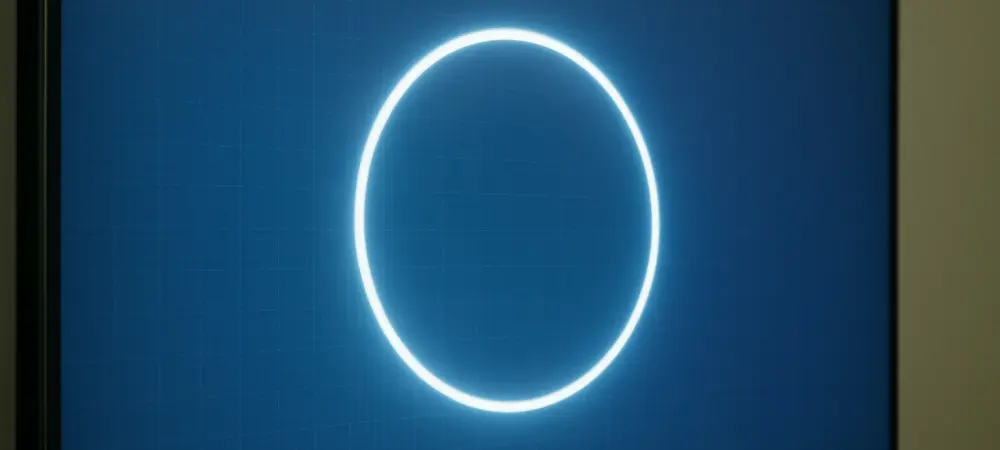
The most striking change in Build 26340.9502 is the newfound control over how the indicator behaves after you call for it. Previously, you might have seen a brief animated circle that vanished before you could even focus your eyes on it, which was incredibly frustrating on triple-monitor setups. Now, we have a “Single Ctrl key press” or a “Double Ctrl key press” to trigger a sleeker new animation that actually feels alive on the screen. The real game-changer is the new checkbox that keeps the indicator active until you click or hit the Esc key, effectively anchoring your visual focus. It provides a persistent beacon in a sea of open windows, ensuring you never lose that split-second of momentum during an intense coding session or a complex design task.
There has been a specific focus on the visual fluidity of these animations, with testers moving from 30 fps to 60 fps recordings to capture the detail accurately. Why is the smoothness of a simple accessibility tool so vital for the professional user experience?
Visual fluidity isn’t just about aesthetics; it is about reducing the cognitive load on the user. When we look at the testing for Build 26340.9502, the difference between a 30 fps and a 60 fps capture reveals just how much smoother the animation movement has become. If an indicator stuttered or looked choppy, it would create a jarring sensory experience that distracts from the actual work. A smooth, 60 fps animation feels like a natural extension of the OS, gliding across the screen to guide your eyes rather than jumping at them. This level of polish ensures that the tool feels reliable and premium, which is essential for users who spend eight to ten hours a day staring at these interfaces.
While these native tools are evolving, utilities like PowerToys still offer deep customization like 100-pixel radii or 500-millisecond durations. How do you see the relationship between these native Windows features and those more advanced power-user utilities?
There is a fascinating synergy between the built-in Mouse Indicator and tools like PowerToys’ Find My Mouse. PowerToys still offers that granular “pro” level of control, allowing users to define specific spotlight colors or adjust shake sensitivity to prevent accidental triggers. It even has the intelligence to stay quiet when Game Mode is running, which is a level of context-awareness we are still waiting to see fully integrated into the base OS. However, the native version is catching up by removing the need for clunky shortcuts like Win+Ctrl+Shift+M in favor of simple checkboxes. It’s a classic evolution where the most popular “power” features eventually become the standard, polished experience for the average user.
Operating systems often face hurdles with customization, such as the cursor issues seen with the KB5120998 update earlier this year. What are the primary challenges of rolling out these visual updates to users who rely on high-DPI or animated mouse cursors?
The primary challenge is the sheer diversity of hardware and user configurations, which we saw play out with the 24H2 and 25H2 updates. When Microsoft confirmed the issues in August, it highlighted how even a small change in pointer rendering can break things for users with high-DPI settings or custom animated cursors. This is exactly why the redesigned Mouse Indicator is currently locked behind a Controlled Feature Rollout in the Experimental channel. By releasing it to only a subset of Insiders first, they can monitor for these specific glitches before a global release. It’s a delicate dance of trying to innovate the visual language of the OS without alienating people whose accessibility needs depend on very specific, sometimes non-standard, cursor behaviors.
What is your forecast for the future of accessibility-driven UI design in Windows?
I expect to see accessibility tools become increasingly predictive and context-aware, moving beyond simple manual triggers. Over the next few years, we will likely see the OS analyze your eye movement or cursor “hunting” patterns to automatically highlight the pointer if it senses you’ve lost track of it. We are moving toward an era where the interface anticipates your needs, perhaps adjusting that 100-pixel spotlight or animation duration in real-time based on the complexity of the current task. Eventually, the distinction between “accessibility settings” and “standard UI” will blur entirely, creating a seamless environment that adapts to the user’s physical and cognitive state without them ever having to check a box.