

I’m thrilled to sit down with Dominic Jainy, a seasoned IT professional whose deep knowledge of artificial intelligence, machine learning, and blockchain also extends to the evolving world of operating systems like Windows 11. With his finger on the pulse of tech innovations, Dominic is the perfect person to guide us through Microsoft’s latest update, particularly the revamped Start Menu. In our conversation, we’ll explore how this redesign enhances user customization, improves performance, adapts to various devices, and integrates handy features like Phone Link, alongside other exciting updates in Windows 11.
Can you walk us through the major updates to the Windows 11 Start Menu in this latest release?
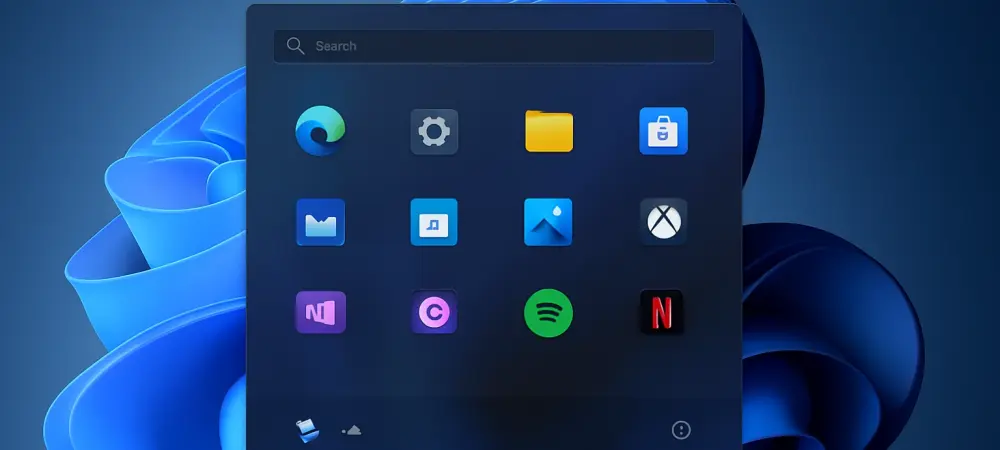
Absolutely, the new Start Menu in Windows 11 is a significant overhaul aimed at improving both functionality and aesthetics. The layout has shifted to a larger, scrollable design that feels much cleaner and more intuitive compared to the older, more static version. For the first time, users can hide sections like the “Recommended” area, which used to clutter the menu with suggestions you might not need. This redesign prioritizes what matters most to the user, making it easier to access apps and files without unnecessary distractions.
How does the scrollable layout enhance the way users interact with the Start Menu?
The scrollable layout is a game-changer because it maximizes space and accessibility. Unlike the previous confined design, this allows you to see more content without feeling cramped. It’s particularly useful for people who have a lot of pinned apps or frequently accessed files, as everything is just a quick scroll away. It creates a smoother, more fluid experience, especially when you’re trying to navigate quickly through your tools and documents.
What kind of customization options are available for tailoring the Start Menu to individual preferences?
Customization is at the heart of this update. Users now have a lot of control over what appears in the Start Menu. You can choose which apps are pinned or visible, ensuring that only the software you use regularly takes up prime real estate. Beyond that, there are viewing options like Grid View for a compact look or Category View, which groups apps into smart, organized folders—think productivity or entertainment. It’s all about making the menu work for you, not the other way around.
Can you dive deeper into how the Category View functions and how it compares to mobile app organization?
Category View is pretty neat—it automatically sorts your apps into logical groups based on their purpose, much like the app shelf on iOS or iPadOS devices. For example, your office apps might be bundled under a productivity category, while games get their own section. This reduces the mental load of hunting for apps manually and mirrors the intuitive grouping we’re used to on smartphones and tablets. It’s a familiar concept brought to the desktop, making navigation feel second nature.
How does the redesigned Start Menu adapt to different screen sizes and setups?
Microsoft has done a great job ensuring the Start Menu scales dynamically with screen size. On larger displays, like a desktop monitor, it expands to show more pinned apps and shortcuts at once, taking full advantage of the extra space. This adaptability means you’re not stuck with a one-size-fits-all design—it morphs to fit your setup, whether you’re on a compact laptop or a sprawling multi-monitor rig, enhancing usability across the board.
There were some performance hiccups with the older Start Menu. How does this update address those issues?
Yes, performance was a sticking point for many users, especially with things like slow or glitchy search functionality in the old Start Menu. This redesign tackles those complaints head-on with a more optimized framework. The menu now loads faster, search results pop up more responsively, and the overall experience feels smoother. It’s clear Microsoft listened to user feedback and prioritized speed and reliability in this update, which makes a noticeable difference in day-to-day use.
Let’s talk about the new Phone Link feature integrated into the Start Menu. How does it improve connectivity between devices?
The Phone Link panel is a fantastic addition for anyone juggling a phone and PC. Right from the Start Menu, you can now see recent notifications, missed calls, and text messages without needing to pick up your device. It’s all about convenience—imagine replying to a quick text or checking a notification without breaking your workflow. This seamless integration bridges the gap between your phone and computer, making multitasking a lot easier for users who rely on both devices.
Beyond the Start Menu, what other noteworthy changes come with this Windows 11 update?
There are some nice touches outside the Start Menu as well. The Taskbar has been refined with smoother thumbnail animations when you hover over open apps, which adds a polished feel to navigation. Additionally, the battery icon now shows the percentage directly on the Taskbar, so you don’t have to click through menus to check your power status. These small but meaningful updates enhance the overall user experience, showing Microsoft’s attention to detail across the system.
For those eager to try out this new Start Menu, can you explain the steps to get this update installed?
It’s pretty straightforward to get your hands on this update. Just click on the Start button, head to Settings, and navigate to Windows Update, which you’ll find at the bottom of the left sidebar. From there, click ‘Check for updates.’ If the October 2025 non-security update for Windows 11 versions 24H2 or 25H2 is available, hit ‘Download and install,’ and then restart your PC when prompted. It’s a simple process, but keep in mind that not everyone will see it roll out immediately as it’s being distributed gradually.
Looking ahead, what’s your forecast for the future of user interface design in operating systems like Windows?
I think we’re heading toward even more personalized and adaptive interfaces. With advancements in AI and machine learning, operating systems like Windows could predict user needs more accurately, dynamically adjusting layouts or suggesting apps based on habits and context. I also expect deeper integration between devices—think not just phone and PC, but smart home systems and wearables all syncing effortlessly through the OS. Microsoft is already laying the groundwork with updates like this Start Menu, and I’m excited to see how they’ll push the boundaries of intuitive design in the coming years.