

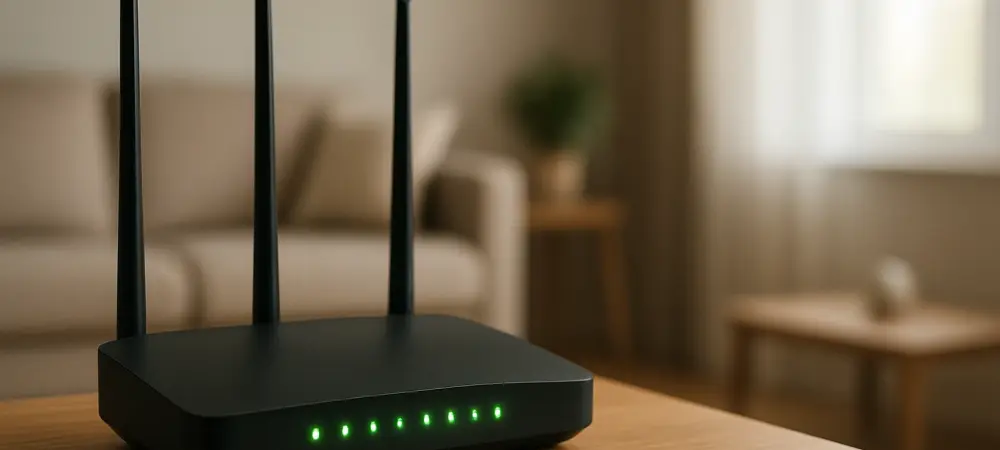
Security remains a critical priority when deploying older hardware, as devices lacking current firmware updates may introduce vulnerabilities to the network. Repurposing a retired router as a wireless extender is not only an environmentally conscious choice but also a cost-effective strategy for eliminating signal gaps. This process requires a basic understanding of network topology and a willingness to dive into administrative settings, yet it offers a rewarding DIY solution for those seeking to maximize their existing technological investments without additional overhead. By converting a secondary unit into an access point, users can effectively bridge the physical distance between their primary internet gateway and the peripheral areas of their living space. This technical endeavor transforms a legacy device into a functional asset, ensuring that high-speed connectivity reaches every corner of the property.
1. Powering the Hardware and Triggering a Factory Reset
Commencing the transformation of a legacy router starts with ensuring the hardware is physically operational and disconnected from any conflicting configurations. Before attempting to interface with the software, a complete factory reset must be performed to wipe any lingering settings from its previous life as a primary gateway. These residual configurations, such as custom DNS settings or outdated static IP assignments, can cause significant connectivity issues when the router is introduced into a new environment. By restoring the device to its original factory state, the user creates a clean slate, facilitating a smoother transition into its new role as a Wi-Fi extender. This fundamental step ensures that any hidden software bugs or specific carrier-locked settings are neutralized before the sophisticated reconfiguration process begins. This preparation is the cornerstone of building a stable and predictable secondary access point.
The physical execution of a factory reset typically involves locating a recessed button on the rear or underside of the router housing. Because this button is designed to prevent accidental presses, a thin, sturdy object like a straightened paperclip or a specialized electronic SIM tool is required to reach the internal switch. One must firmly depress and hold this button for a duration of 15 to 30 seconds, observing the front-facing LED indicators for specific light patterns. Usually, a successful reset is signaled by a rhythmic flashing or a momentary darkening of all lights, followed by a full reboot. Patience is required during this phase, as interrupting the power supply while the memory is being cleared could lead to firmware corruption or a bricked device. Once the lights stabilize, the router is ready for its initial administrative login. This reset not only secures the hardware but also confirms that the basic mechanical functions of the unit are still intact after years of storage and disuse, preparing it for the rigors of modern traffic.
2. Installing Firmware Updates and Securing Login Credentials
After the hardware has been successfully reset, the next critical phase involves accessing the internal management interface to update the core software. This is typically achieved by connecting a computer directly to one of the router’s LAN ports via an Ethernet cable, ensuring a stable connection that is not reliant on a potentially weak wireless signal. Users must then open a standard web browser and enter the default gateway IP address, which is frequently 192.168.0.1 or 192.168.1.1, depending on the manufacturer. This information, along with the temporary administrative credentials, is usually located on a sticker attached to the bottom of the device. Entering this digital dashboard provides a comprehensive overview of the router’s capabilities and current status. Navigating to the system tools or administration tab will reveal the current firmware version, which is the foundational operating system controlling the device’s hardware and its interaction with the broader internet ecosystem.
Establishing robust security protocols is an essential part of this phase when repurposing older networking equipment for modern household use. Upon the first successful login to the administrative panel, the interface often prompts the user to change the default factory credentials. Default usernames like “admin” and generic passwords are well-documented in public databases and represent a significant entry point for malicious actors. It is imperative to replace these placeholders with a unique and complex password that utilizes a combination of uppercase letters, numbers, and special symbols. This primary password controls access to the router’s internal settings and must be kept separate from the Wi-Fi network key that guests or family members use. In 2026, the sophistication of unauthorized access attempts has increased, making these basic security measures more important than ever before. Failing to secure the management interface could allow an external party to reroute traffic or even use the secondary router as a launching point for attacks.
3. Activating the Extension Mode for Enhanced Coverage
Configuring the specific mode of operation is the most technical aspect of the conversion process and dictates the overall performance of the extended network. There are two primary methods for this: Access Point (AP) mode and Repeater mode. AP mode is widely regarded as the superior option because it involves a physical Ethernet connection between the primary router and the secondary device. In this configuration, the old router acts as a direct conduit for the internet signal, broadcasting a full-strength Wi-Fi signal in the target area without the latency associated with wireless relays. To set this up, users must navigate to the wireless settings and enable AP mode, while simultaneously disabling the Dynamic Host Configuration Protocol (DHCP) server on the secondary unit. Disabling DHCP is crucial because it prevents the old router from attempting to assign IP addresses, which should remain exclusively with the main gateway. Assigning a static IP address to the secondary router ensures consistent connectivity and easier administrative access.
If running an Ethernet cable through the walls is not a viable option, the wireless repeater or bridge mode offers a convenient alternative. In this setup, the old router scans for the existing Wi-Fi signal from the main hub and rebroadcasts it to expand the coverage area. While this method is highly convenient and requires no additional cabling, it inherently introduces a degree of signal degradation because the router must use its radio to both receive and transmit data simultaneously. Users must select the “Wireless Repeater” option in the settings, choose their primary network from the list of available signals, and enter the corresponding Wi-Fi password. It is essential to ensure that the secondary router supports at least WPA2 encryption to maintain a secure link between the two devices. Although the speeds may not match those of a wired access point, a well-configured repeater can still provide enough bandwidth for high-definition streaming and standard web browsing in previously unreachable zones, effectively bridging the digital divide.
4. Positioning the Device and Validating Signal Strength
The physical location of the newly configured extender is just as important as the internal settings for ensuring a high-quality user experience. Placing the device too close to the main router provides redundant coverage while placing it too far away in a dead zone will result in the extender receiving a signal that is already too weak to rebroadcast effectively. The ideal placement for a wireless repeater is typically the halfway point between the primary router and the area where the connection is currently failing. This allows the device to pick up a strong signal and project it into the problematic room with minimal loss of throughput. For access points connected via Ethernet, the placement is more flexible, though one should still consider the layout of the home. Large metal appliances, thick concrete walls, and even decorative mirrors can significantly obstruct wireless waves and should be avoided when selecting a mounting spot. Elevation also plays a key role; mounting the router on a high shelf can improve the line of sight.
Once the optimal position has been identified and the device is powered on, the final step involves rigorous validation and performance benchmarking. Users should move to the previously designated dead zone with a laptop or smartphone and perform a series of speed tests to verify the success of the installation. Using web-based tools or mobile applications, one can measure download and upload speeds, as well as latency and jitter. It is also important to verify that devices can transition smoothly between the main router and the new extender without dropping the connection. This seamless roaming is often achieved by giving the secondary router the same SSID and password as the primary network, though some older hardware may perform better with a distinct network name to prevent confusion. If the speeds are lower than expected, adjusting the orientation of the antennas or moving the device just a few feet often yielded significant improvements in signal quality, ensuring that the repurposed hardware delivered tangible benefits and stability.
5. Strategic Implementation of Legacy Hardware Solutions
The successful conversion of an old router into a Wi-Fi extender demonstrated that effective home networking did not always require the latest consumer electronics. By carefully following the systematic process of resetting the hardware, securing the administrative interface, and selecting the most appropriate operational mode, the existing digital infrastructure was significantly enhanced. This approach not only solved the immediate problem of dead zones but also extended the lifecycle of high-quality components that would have otherwise contributed to electronic waste. Looking forward, as network demands continued to evolve through 2027 and 2028, these repurposed devices served as a reliable stopgap until a full transition to more advanced standards became necessary. Users who took these steps gained a deeper understanding of their own technology, empowering them to manage their connectivity with greater independence. This technical autonomy reduced the reliance on expensive proprietary solutions while breathing new life into forgotten hardware components.
Future considerations for these DIY networks involved monitoring the ongoing security landscape to ensure that legacy encryption remained sufficient for evolving threats. As data throughput requirements increased, the limitations of older Wi-Fi standards became more apparent, prompting periodic evaluations of the hardware’s effectiveness. However, the foundational skills acquired during the setup process provided a solid basis for transitioning to more advanced systems like Wi-Fi 7 or unified mesh networks in the coming years. Maintenance routines, such as monthly reboots and occasional firmware checks, ensured that the extended coverage remained stable and efficient throughout its operation. The project effectively turned a potential piece of e-waste into a functional tool that bridged the connectivity gaps in a modern household. By taking proactive steps to optimize existing assets, homeowners established a more flexible and cost-aware digital environment. This successful integration proved that technical ingenuity and fundamental networking principles remained the most powerful tools.