

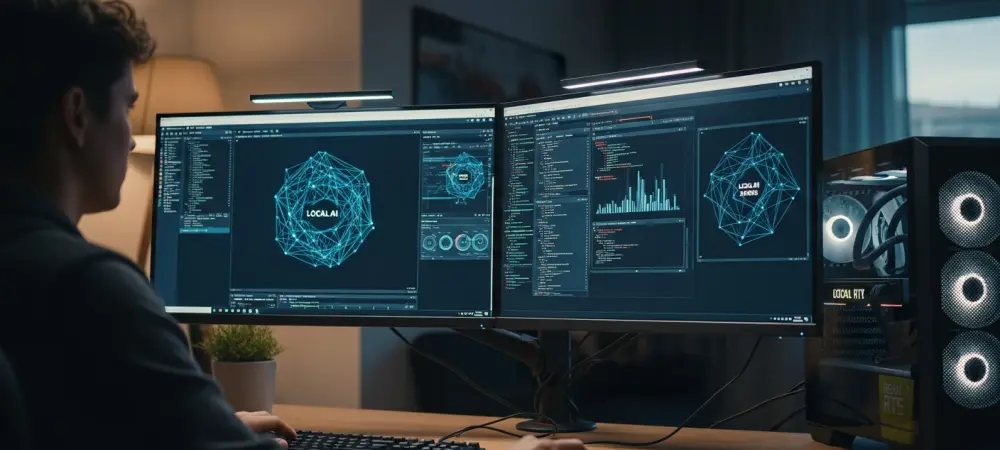
The powerful graphics card humming inside your gaming PC possesses a latent capability that extends far beyond rendering virtual worlds, holding the key to unlocking a new era of deeply personalized and private artificial intelligence. This guide illuminates the path to transforming that hardware into a sophisticated, on-device AI assistant, moving beyond the limitations of cloud-based services and placing unprecedented computational power directly at your fingertips.
This transformation is made possible by recent advancements in hardware and software, championed by platforms like NVIDIA’s RTX series. With the availability of powerful open-source agents like OpenClaw, the process of setting up a local AI is more accessible than ever. This guide provides a comprehensive walkthrough, from preparing your system environment to launching your first commands, empowering you to create a genius companion tailored to your specific needs and data, all within the secure confines of your desktop.
From Gaming Rig to Genius Companion Unleashing AI on Your Desktop
The landscape of artificial intelligence is undergoing a fundamental shift, moving from a complete reliance on distant, third-party data centers toward a more personal, on-device model. This paradigm change allows users to harness the immense processing power of their own computers to run sophisticated AI applications. NVIDIA’s comprehensive resources, combined with powerful agents like OpenClaw, now empower any GeForce RTX owner to repurpose their gaming rig into a highly capable and private AI hub, making personalized assistance a tangible reality.
This journey transforms a PC from a simple tool for consumption and entertainment into a proactive, intelligent partner. The process involves setting up a specialized software environment, selecting a Large Language Model (LLM) that acts as the AI’s brain, and connecting it to an agent that can interact with your local files and applications. The result is an assistant that understands your personal context, respects your privacy, and operates with the speed and responsiveness that only local hardware can provide.
Why Local AI is the Next Frontier in Personal Computing
The growing demand for data privacy and user control is accelerating the adoption of “local-first” AI solutions. As users become more aware of how their information is handled by large cloud providers, the appeal of a system that processes sensitive data exclusively on a personal machine becomes undeniable. A local AI assistant can securely access your documents, emails, and calendar to provide genuinely useful context-aware support without ever sending that information over the internet, offering a level of security that cloud-based services cannot match.
NVIDIA’s hardware advancements have been instrumental in making this local AI revolution feasible for the average consumer. The architecture of modern RTX GPUs, featuring dedicated Tensor Cores and the CUDA programming model, is specifically designed to accelerate AI workloads. Furthermore, the introduction of the NVFP4 instruction set has delivered a significant performance boost, enabling 35% faster LLM processing and a 3x speed-up in creative AI tasks. This raw power, once reserved for enterprise-grade systems, is what allows a sophisticated agent like OpenClaw to run efficiently on a desktop PC, solidifying its position as a leading example of a secure and highly capable personal AI.
Setting Up Your Personal AI Assistant with OpenClaw and NVIDIA RTX
Step 1 Preparing Your Windows Environment with WSL
The foundation for running many advanced AI tools on a Windows machine is a robust Linux environment. The Windows Subsystem for Linux (WSL) provides this capability, allowing you to run a genuine Linux distribution directly on Windows without the overhead of a traditional virtual machine. This initial step is crucial as it creates the necessary compatibility layer for the AI models and management tools that will follow, bridging the gap between the Windows operating system and the open-source AI ecosystem.
Preparing your environment involves more than a simple installation; it requires configuring WSL to communicate effectively with your system’s hardware, particularly your NVIDIA GPU. Proper setup ensures that the AI software can leverage the full power of your RTX card’s Tensor Cores and CUDA technology for accelerated performance. Taking the time to establish this stable foundation will prevent potential bottlenecks and compatibility issues later in the process, ensuring a smooth and efficient AI experience.
Pro Tip What is Windows Subsystem for Linux (WSL) and Why You Need It
Windows Subsystem for Linux is a compatibility layer developed by Microsoft that allows users to run a GNU/Linux environment, including most command-line tools, utilities, and applications, directly on Windows, unmodified, without the need for a dual-boot setup. For the purpose of running a personal AI, WSL is essential because many leading LLMs, development tools, and agents like OpenClaw are originally designed for and optimized to run on Linux. It provides the native performance and system call compatibility required to operate these complex applications efficiently.
By using WSL, you gain access to the vast repository of open-source software and developer tools that are standard in the AI research and development community. It effectively gives you the best of both worlds: the familiar user interface and broad software support of Windows combined with the powerful development and scripting capabilities of Linux. This integration is key to unlocking the full potential of your hardware for AI tasks.
Getting Started A Quick Guide to Installing and Configuring WSL 2
Installing WSL 2 is a straightforward process that begins in the Windows PowerShell or Command Prompt. Running the command wsl --install with administrator privileges will initiate the installation, which automatically enables the required Windows features, downloads the latest Linux kernel, and installs a default Linux distribution, typically Ubuntu. This single command handles the bulk of the initial setup.
Once the installation is complete and you have rebooted your machine, it is critical to ensure that your NVIDIA drivers are properly configured to work with WSL. This involves installing the latest GeForce Game Ready or NVIDIA Studio Driver, which includes the necessary components for CUDA support within the Linux environment. After confirming your driver installation, you can launch your Linux distribution from the Start Menu and proceed with updating its packages using commands like sudo apt update && sudo apt upgrade to ensure all software is current before moving on to the next steps.
Step 2 Choosing and Installing a Local LLM Runner
With your Linux environment ready, the next task is to select and install the software that will manage and run the LLM, which serves as the core intelligence of your AI assistant. This piece of software, often called an LLM runner, acts as a server on your local machine, loading the model into your GPU’s memory and providing an interface for other applications, like the OpenClaw agent, to communicate with it.
These runners simplify the otherwise complex process of deploying an LLM. They handle the technical details of model management, resource allocation, and API endpoint creation, presenting a user-friendly interface for downloading, configuring, and switching between different models. Your choice of runner will influence the ease of setup and the flexibility you have in experimenting with various language models, making it a pivotal decision in the setup process.
LM Studio vs Ollama Which Tool is Right for You
LM Studio and Ollama are two of the most popular tools for running LLMs locally, but they cater to slightly different user preferences. LM Studio offers a comprehensive graphical user interface (GUI) that makes it easy for beginners to browse, download, and interact with models. Its built-in chat interface and straightforward configuration settings are ideal for those who prefer a visual, point-and-click approach to AI management. Ollama, in contrast, is a command-line-first tool designed for users who are comfortable working in a terminal. It excels at simplicity and efficiency, allowing you to download and run a model with a single command. Its streamlined, minimalist approach appeals to developers and power users who value speed and scriptability. Both tools are highly capable, and the right choice depends on your comfort level with the command line versus a graphical interface.
Critical Step Downloading and Configuring Your First Language Model
Once you have chosen and installed a runner like LM Studio or Ollama, the final part of this step is to download a language model. Your runner will provide access to a library of open-source models of varying sizes and capabilities. For your initial setup, it is crucial to select a model that is compatible with your system’s hardware, particularly the amount of video RAM (VRAM) on your RTX GPU.
After downloading, you will need to load the model through the runner’s interface. This action allocates the necessary VRAM and prepares the model to receive prompts. The runner will then expose a local server endpoint, which is essentially a communication channel. The OpenClaw agent will use this endpoint to send its requests to the LLM and receive intelligent responses, effectively connecting the AI’s brain to its operational capabilities.
Step 3 Calibrating Your AI to Your GPU’s Power
Optimizing the performance of your personal AI assistant requires a careful balance between the sophistication of the language model and the hardware resources of your PC. A larger, more complex model can provide more nuanced and accurate responses, but it also demands significantly more VRAM and computational power. Attempting to run a model that exceeds your GPU’s capacity will result in slow performance or system instability. Therefore, the calibration process involves selecting an LLM whose size, measured in billions of parameters, is well-suited to the VRAM available on your RTX card. This ensures that the entire model can be loaded into the GPU’s memory, which is essential for achieving the fast response times expected from a local assistant. Matching the model to your hardware correctly is the key to creating a responsive and reliable AI experience.
Matching VRAM to Model Size Recommended Pairings for 8GB 12GB and 24GB+ GPUs
To achieve optimal performance, it is essential to align the LLM’s size with your GPU’s VRAM. For entry-level RTX cards with 8GB of VRAM, smaller models in the 3B to 7B parameter range are recommended. These models are highly efficient and can handle tasks like text summarization and simple instruction-following with impressive speed. Mid-range GPUs equipped with 12GB to 16GB of VRAM can comfortably run more capable models, typically in the 13B to 30B parameter range. These LLMs offer a significant improvement in reasoning and creative generation capabilities. For high-end consumer cards with 24GB or more of VRAM, users can explore even larger models, around 70B parameters, which approach the performance of leading commercial AI services for complex problem-solving and in-depth analysis.
The DGX Spark Advantage Pushing the Limits with 120B Models and 128GB of Memory
While consumer RTX GPUs offer remarkable capabilities, professional-grade systems like the NVIDIA DGX Spark represent the pinnacle of local AI performance. With a massive 128GB memory pool, these systems can run exceptionally large 120B parameter models entirely in local memory. This eliminates the need for model quantization or other compromises, resulting in maximum accuracy and blistering responsiveness.
The DGX Spark platform, which has seen a 2.5x performance increase since its introduction, is designed for developers and researchers who require uncompromising AI power. It demonstrates the upper limits of what is achievable with on-device AI, providing a fully localized and highly intelligent experience that can handle the most demanding computational tasks without ever needing to connect to the cloud.
Step 4 Installing and Launching the OpenClaw Agent
The final phase of the setup process involves installing the OpenClaw agent itself. This application serves as the command center for your personal AI, interpreting your instructions and interfacing with both the local LLM and your computer’s files and applications. OpenClaw’s architecture is specifically designed to orchestrate complex tasks by breaking them down into smaller steps that the LLM can process.
Installation typically involves downloading the agent and running a simple setup script within your WSL environment. Once installed, you will configure OpenClaw to connect to the local server endpoint created by your LLM runner (LM Studio or Ollama). This connection establishes the link between the agent’s logic and the LLM’s reasoning capabilities, effectively bringing your personal assistant to life and preparing it to receive its first commands.
Security Check Understanding Local First Architecture and Data Privacy
A core advantage of the OpenClaw agent is its “local-first” design. This architecture ensures that all processing and data access occur directly on your machine. When you ask your assistant to summarize a document or draft an email based on your notes, OpenClaw accesses those files locally, sends the relevant information to the LLM running on your GPU, and generates the response without any data leaving your computer.
This model provides a robust solution to the privacy concerns associated with cloud-based AI assistants. Your personal files, sensitive information, and interaction history remain under your exclusive control. Understanding and trusting this security model is a crucial final check before you begin integrating the assistant into your daily workflows, giving you peace of mind that your data remains private.
First Commands Testing Your New AI Assistant as a Secretary Project Manager or Researcher
With the setup complete, it is time to test your new AI assistant’s capabilities. Start with simple tasks to verify that the connection between OpenClaw and your LLM is working correctly. For example, you can ask it to act as a personal secretary by instructing it to “read my calendar for today and draft an email to my team summarizing the key meetings.” This tests its ability to access local information and generate text.
Next, explore more complex roles. Ask it to function as a project manager by giving it a list of tasks and deadlines, then requesting a status update. Or, challenge it to be a research agent by asking it to “search the web for the latest advancements in AI hardware and combine the findings with my recent notes on the topic to create a detailed report.” These initial commands will demonstrate the practical power and versatility of having a personalized AI integrated directly into your desktop environment.
Your Quick Start Checklist for a Local AI Setup
This summary outlines the essential steps to activate your personal AI assistant. Successfully completing these actions will transition your NVIDIA RTX-powered PC from a standard computer into a powerful, private AI hub. Each step builds upon the last, culminating in a fully functional and responsive intelligent agent ready to assist with your daily tasks.
- Install and configure the Windows Subsystem for Linux (WSL).
- Choose and set up a local LLM runner like LM Studio or Ollama.
- Download an LLM that matches your GPU’s VRAM capacity.
- Install the OpenClaw agent and connect it to your local model.
The Future is Local How On Device AI is Changing Everything
The widespread availability of powerful, on-device AI marks a transformative moment for personal computing. By moving intelligence from the cloud to the user’s machine, this technology fundamentally changes our relationship with data and productivity. Individuals gain the ability to create highly personalized workflows, automating complex tasks with an assistant that has a deep, contextual understanding of their personal files and habits, all while maintaining complete data privacy. This shift promises to unlock new levels of efficiency and creativity, tailored specifically to the individual.
This new era presents immense opportunities but also introduces challenges. As local AI becomes more capable, the need for intuitive user interfaces and seamless integration with existing software will be paramount for mainstream adoption. Furthermore, ensuring that these powerful tools are used responsibly will require ongoing development in AI safety and ethics. The continued evolution of hardware, such as next-generation RTX GPUs, will further democratize access to sophisticated AI, making what seems cutting-edge today a standard feature of the personal computer of tomorrow.
Your AI Journey Starts Now
The potential unlocked by running a personal AI on a consumer-grade RTX GPU was immense, signifying a major leap forward in accessible technology. The fusion of powerful hardware with sophisticated agents like OpenClaw provided a clear pathway for anyone to experience the future of personalized, secure, and highly responsive artificial intelligence.
This setup transformed a standard PC into a dynamic and intelligent partner, capable of managing schedules, conducting research, and streamlining complex projects with an unprecedented level of contextual awareness. By following this guide, users successfully embraced this new technological frontier, experimenting with their own on-device assistants and discovering firsthand the profound impact of truly personal AI.