

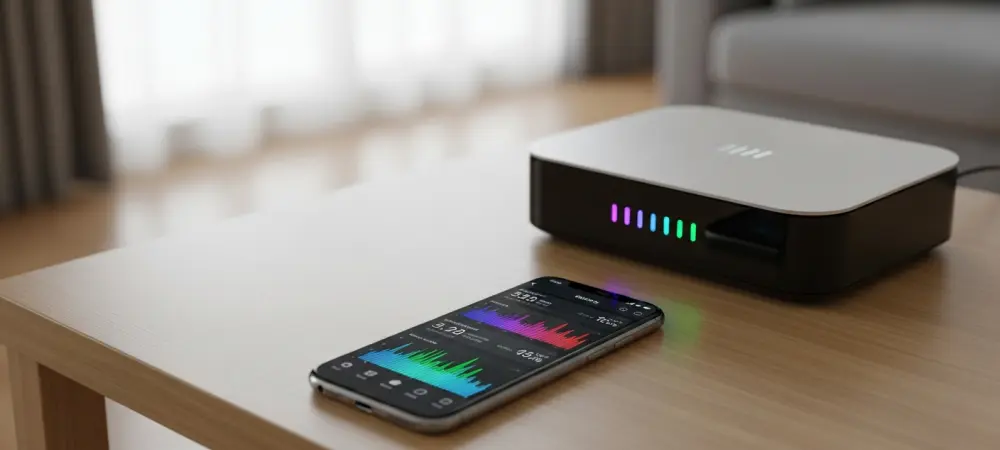
The persistent frustration of a lagging internet connection often stems from invisible environmental factors rather than a faulty service provider or an outdated hardware unit. In 2026, the density of wireless networks in urban environments has reached unprecedented levels, creating significant interference that degrades performance for millions of households. While most users assume that purchasing a new router or upgrading to a higher-tier data plan is the only way to solve connectivity issues, Samsung Galaxy devices offer a sophisticated alternative hidden deep within the One UI settings. Connectivity Labs serves as a comprehensive diagnostic suite that allows users to identify signal dead zones, analyze frequency congestion, and optimize hardware placement without the need for third-party applications. This feature represents a significant shift in consumer technology by providing high-level networking tools directly to the average user, enabling them to troubleshoot complex issues that previously required professional intervention.
Beyond simple connectivity, these tools empower individuals to take control of their digital environment by exposing the underlying data that governs wireless communication. By demystifying the complexities of radio frequency interference and signal attenuation, Samsung has provided a way for users to maintain a high-quality link even in the most challenging conditions. This approach is particularly relevant as more homes incorporate a multitude of smart devices that all rely on a stable Wi-Fi backbone to function correctly. Understanding how to access and interpret this data is becoming a necessary skill for the modern consumer who demands uninterrupted streaming, gaming, and remote work capabilities. As we explore the specific mechanics of these hidden features, it becomes clear that the smartphone is no longer just a communication device, but a vital piece of infrastructure management hardware. The following sections will detail the precise steps required to unlock and utilize this powerful internal diagnostic laboratory.
1. Accessing the Hidden Connectivity Labs Menu
To begin the optimization process, users must navigate through a specific sequence of menus to reveal the developer options for wireless networking. First, open the general Settings menu on the Galaxy device and select the Connections category, which contains the Wi-Fi management tools. Once inside the Wi-Fi section, tap on the three-dot icon located in the upper-right corner of the screen to reveal advanced settings. From this menu, select the Intelligent Wi-Fi option, which houses various automated features designed to improve connection stability. However, the Connectivity Labs suite is not visible by default and requires a deliberate activation gesture to prevent accidental changes by casual users. By tapping the Intelligent Wi-Fi text repeatedly, the system recognizes a developer request and eventually displays a notification confirming that the hidden menu has become available for use. This security measure ensures that only those seeking advanced data will interact with these parameters.
Once the Connectivity Labs menu is successfully unlocked, it appears as a new entry at the bottom of the Intelligent Wi-Fi page, offering a range of data points that are usually hidden from the standard interface. This section acts as a gateway to specialized telemetry that monitors the health and efficiency of the local wireless environment. It is important to note that these tools are designed to provide transparency into how the phone interacts with various access points, rather than just acting as a simple toggle for settings. Users can observe real-time metrics regarding packet loss, latency, and signal-to-noise ratios, which are critical for identifying why a connection might feel sluggish despite showing full signal bars. By providing this granular level of detail, Samsung empowers users to make informed decisions about their home network configuration rather than relying on guesswork. Accessing this hidden portal is the first essential step toward optimizing the residential ecosystem.
2. Finding the Ideal Wi-Fi Channel for Better Speed
After entering the specialized Wi-Fi developer options located inside the Labs menu, users should focus on identifying the least congested frequency channels in their immediate surroundings. Overlap with neighboring networks is a primary cause of decreased throughput and increased latency in modern residential buildings. To address this, navigate to the Nearby Wi-Fi information section to see a comprehensive list of all active signals in the vicinity. Within this interface, tap on the Channel utilization option to view a visual representation of how crowded various local frequencies currently are. This data is crucial because most routers are set to select channels automatically, which often leads to several devices crowding the same limited spectrum. By observing which channels are heavily utilized by neighboring routers, users can gain a clear understanding of why their own network performance might be dipping during peak hours when everyone in the building is active.
To implement a fix, look at the recommendation provided at the bottom of the Channel utilization screen, which identifies the specific channel currently offering the best performance. This intelligent analysis compares signal strength against existing traffic to determine the clearest path for data transmission. Once the ideal channel is identified, the next logical step involves accessing the administration page of the home router through a web browser or a dedicated mobile app. Within the wireless settings of the router, users can manually switch the broadcast channel from the default automatic setting to the specific number recommended by the Galaxy device. This manual override prevents the router from jumping back into a congested frequency, ensuring a clear communication path between the hardware and devices. Making this adjustment often results in a noticeable improvement in download speeds and a significant reduction in the lag experienced during online gaming or video calls.
3. Improving Signal Coverage and Router Location
Physical barriers such as walls, appliances, and furniture act as significant impediments to wireless signal propagation, often creating frustrating dead zones in specific parts of a home. To map these problem areas effectively, select the specific home network from within the Home Wi-Fi inspection tool found in the Connectivity Labs menu. This utility turns the smartphone into a mobile sensor that tracks signal fluctuations with high precision as the user moves from room to room. By carrying the Galaxy phone throughout the house while the inspection tool is active, users can observe how the signal strength changes in real-time. The interface provides a clear indicator of where the connection is strongest and where it begins to degrade significantly. This systematic approach allows for a scientific assessment of the home’s wireless coverage, replacing traditional methods of trial and error with data-driven insights that highlight exactly where the network fails.
Monitoring the real-time graph provided by the inspection tool reveals exactly where the signal strength fluctuates or disappears entirely, pinpointing the boundaries of the router’s effective range. Once these dead zones have been identified, the user can experiment with adjusting the physical position of the router to achieve more balanced coverage across the living space. Often, moving a router just a few feet or placing it on a higher shelf can drastically improve its ability to bypass physical obstructions like concrete walls or large metal objects. As the router is moved, the Home Wi-Fi inspection tool can be used repeatedly to verify the impact of each adjustment, ensuring that the new location provides the best possible signal to every corner of the house. This iterative process of measurement and relocation helps eliminate the need for expensive signal boosters by maximizing the efficiency of the existing hardware already present in the home environment.
4. Implementing Practical Solutions for Long-Term Connectivity
Beyond signal mapping and channel selection, Connectivity Labs includes several features designed to streamline how the device handles transitions between different types of networks. One such feature is the ability to auto-connect to carrier Wi-Fi, which allows the phone to seamlessly utilize a service provider’s public hotspots. This is particularly useful for users who wish to conserve mobile data while traveling through areas where their cellular provider offers verified and secure wireless access points. Furthermore, the system allows users to display network quality details directly within the standard Wi-Fi list. This setting adds descriptive labels like “Best” or “Good” next to available networks, providing an immediate visual cue regarding which connection will offer the most stable experience. Finally, the faster mobile data switching setting enables the phone to jump to cellular data more quickly if the Wi-Fi signal drops, ensuring that a connection is never lost.
The discovery and utilization of these hidden diagnostic tools offered a practical path for users who sought to master their home networking environments without hiring specialists. By systematically following the steps to unlock the Connectivity Labs menu, individuals gained unprecedented access to the technical heartbeat of their wireless connections. They identified the most efficient broadcast channels to avoid local interference and utilized real-time mapping to reposition hardware for maximum coverage. These actions transformed the smartphone from a simple consumption device into a professional-grade analysis tool that resolved persistent connectivity issues. Furthermore, the implementation of advanced switching features ensured that the devices maintained peak performance even during transitions between network types. This proactive approach to network management demonstrated that significant improvements in digital stability were achievable through the intelligent application of existing hardware features.