

Introduction
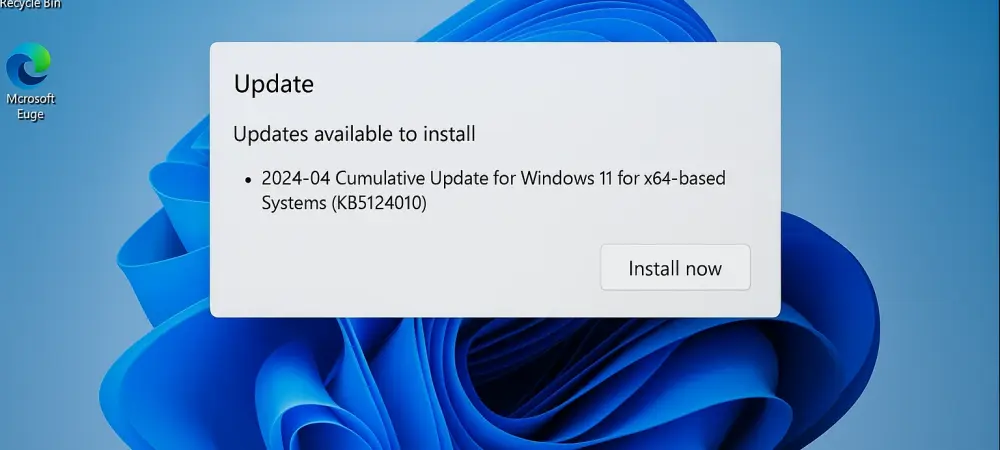
The release of the KB5124010 preview update represents a significant moment in the 2026 software maintenance cycle, offering a glimpse into the refined future of the Windows 11 ecosystem. This specific package is categorized as an optional non-security preview release, which traditionally serves as a testing ground for features and fixes that will eventually become mandatory in the following month. By deploying these updates early, enthusiasts and IT professionals gain the opportunity to stabilize their systems before the broader rollout, ensuring that any potential conflicts with proprietary hardware or niche software are identified and mitigated.
The objective of this analysis is to provide a thorough understanding of the technical adjustments, user interface enhancements, and administrative changes contained within the update. Readers can expect a detailed breakdown of how this release addresses long-standing bugs while introducing modern tools designed to streamline daily productivity. From the nuances of Bluetooth audio synchronization to the strategic overhaul of system recovery management, the scope of this content covers the essential knowledge required to determine if this optional installation is appropriate for a specific machine or enterprise environment.
Key Questions or Key Topics Section
How Does the Update Stabilize Essential System Hardware?
Modern computing relies heavily on the seamless interaction between software drivers and physical peripherals, yet this relationship is often where the most frustrating glitches occur. The KB5124010 update places a heavy emphasis on restoring reliability to the integrated camera systems that many users depend on for professional communication. Previously, a recurring bug caused internal cameras to become unresponsive or fail to initialize when switching between various video conferencing applications, creating a significant bottleneck for remote workers. This update resolves the underlying driver communication errors, ensuring that the hardware remains available and functional across the entire system.
Data integrity is another pillar of this release, specifically regarding the File History utility which serves as a vital safeguard for local backups. Users frequently encountered a misleading prompt asking them to reconnect their drive, even when the external storage was securely attached and recognized by the file system. By correcting the detection logic within the backup service, the update ensures that automated data protection cycles continue without manual intervention. This fix is particularly important for users who rely on network-attached storage or high-capacity external drives to maintain a historical record of their work.
For those operating in high-security environments, the stabilization of the System Monitor tool is a critical highlight. The update addresses a series of vulnerabilities that previously allowed malformed executable files to cause excessive memory consumption or trigger system crashes. By refining how the OS handles header validation and file system filter drivers, Microsoft has made it harder for system-level processes to be disrupted by corrupted data. Furthermore, a correction was applied to prevent the Windows Session Manager from being incorrectly flagged for process tampering, which reduces the volume of false-positive alerts that security administrators must investigate.
What Innovations Are Reshaping the File Explorer Interface?
The File Explorer remains the most frequently used interface within the operating system, and its continued modernization is a central theme of the current development cycle. One of the most noticeable changes in this preview update is the enhanced capability of the Preview Pane, which now offers a more robust way to interact with web-derived files. PDF documents can now be viewed with greater clarity without opening a dedicated reader, and a new security acknowledgement button has been added for HTML files. This allows users to preview potentially risky content in a sandboxed environment, providing a necessary layer of protection without sacrificing the speed of file navigation.
Navigation efficiency has been further improved by introducing state persistence within the Home section of the File Explorer. In previous iterations, categories like Favorites or Recent Files would often reset to a default expanded or collapsed state upon closing the window, forcing users to repeatedly adjust their view. The KB5124010 update ensures that these preferences are saved, allowing for a more personalized and consistent browsing experience. Moreover, the Details pane has undergone a subtle reorganization to prioritize metadata and cloud-based file thumbnails, making it easier for users to identify specific versions of documents stored in synchronized folders.
Beyond mere utility, the update introduces a variety of visual refinements that align the file management system with the broader aesthetic goals of 2026. This includes expanded support for high-quality Device Independent Bitmap files as desktop backgrounds, ensuring that high-resolution imagery remains crisp regardless of the monitor configuration. The logic governing background transitions has also been smoothed out to prevent flickering or alignment issues when users switch between multiple virtual desktops or rotate their displays into portrait mode. These refinements collectively create a more polished environment that feels responsive to the specific needs of the user.
Why Is Audio Connectivity Receiving Such a Robust Overhaul?
Wireless connectivity has become the standard for most modern peripherals, yet achieving perfect synchronization between hardware and software remains a technical challenge. This update addresses specific issues within the Bluetooth stack, particularly the lack of visual feedback when using physical volume controls on Classic Audio headsets. Now, when a user adjusts the volume dial on their physical device, the Windows volume flyout appears on the screen in real-time. This creates a more intuitive relationship between the peripheral and the OS, eliminating the guesswork associated with determining exact audio levels during a call or media playback.
Under the hood, the update tackles more severe stability issues related to Low Energy Audio, which is becoming increasingly prevalent in the 2026 to 2028 hardware landscape. A specific kernel crash known as error code 0x139 had been plaguing users during high-bandwidth audio streaming, leading to sudden system restarts. By refining the way the kernel manages audio buffer allocations, the developers have successfully mitigated these crashes. This improvement is vital for users who utilize advanced wireless earbuds that support multi-stream audio or high-fidelity codecs, ensuring a stable experience even during prolonged usage.
Personal expression also sees an update through the integration of the latest emoji standards, which includes the addition of several unique icons designed for better cross-platform compatibility. While seemingly minor, these updates to the system font and iconography represent a commitment to maintaining modern communication standards. The redesign of existing icons, such as the lotus and the goose, ensures that visual messages sent from a Windows device appear consistent when viewed on other operating systems. This focus on visual parity and connectivity stability highlights the move toward a more integrated and reliable digital communication framework.
How Are Accessibility and Input Controls Being Modernized?
Accessibility features are no longer niche additions but are essential components that improve the computing experience for every type of user. The KB5124010 update introduces a highly requested setting that allows users to force all newly opened applications to start in a maximized window state. This is a game-changer for individuals who rely on screen magnifiers or those using smaller tablet screens where managing overlapping windows can be physically taxing. By eliminating the extra step of maximizing every new process, the operating system reduces the total number of interactions required to begin a productive task.
The Magnifier tool itself has been treated to a comprehensive visual refresh that brings its toolbar and icons in line with the latest Fluent Design language. The spacing and padding of the controls have been adjusted to provide a cleaner look that is easier to navigate with both a mouse and touch input. These changes ensure that the tool feels like a native part of the modern interface rather than a legacy utility. Additionally, the update improves the tracking logic of the magnifier, ensuring that the focal point follows the cursor or keyboard focus more smoothly, which reduces the eye strain often associated with rapid screen movements.
Input flexibility is further expanded through the introduction of remapping options for specialized hardware keys and new touchpad gestures. Users who have hardware featuring a dedicated AI button now have the freedom to assign that key to a different function, such as the Right Ctrl key or the Context Menu. This acknowledges that while AI integration is a major focus, professional users often have deeply ingrained muscle memory for traditional shortcuts. Furthermore, the Precision Touchpad experience has been enhanced with edge-scrolling capabilities, allowing for continuous vertical movement when a finger is held at the boundary of the sensor, a feature that significantly improves long-document navigation.
What Changes Exist for System Administrators and Power Users?
The administrative side of the OS is seeing a strategic shift toward cloud-centric management, as evidenced by the deprecation of legacy migration tools. Microsoft has moved away from direct PC-to-PC migration during the initial setup experience, choosing instead to funnel these needs through the specialized Windows Backup application. This change encourages a more modern approach to device lifecycle management, where settings and files are stored securely in the cloud and restored seamlessly to new hardware. This transition reduces the complexity of local data transfers and ensures that a user’s digital workspace is more resilient to hardware failure.
For enterprise environments where security and control are paramount, the update introduces stricter limitations for Kiosk Mode. In these restricted user environments, common multitasking shortcuts like Task View and Quick Settings are now disabled by default to prevent unauthorized access to the underlying system. This is a crucial update for public-facing terminals or shared workstations in medical and retail settings, where a locked-down interface is necessary for data privacy. By closing these potential loopholes, the update strengthens the integrity of specialized Windows deployments.
Finally, the Windows Recovery Environment has been updated with a new remote management plug-in that provides IT departments with greater control over troubled devices. This tool allows for the remote initiation of recovery tasks and the management of boot policies through existing device management software. This is particularly relevant in the 2026 work environment, where a large percentage of the workforce operates remotely. Being able to repair a system without requiring the physical presence of an IT technician reduces downtime and operational costs, marking a significant advancement in the scalability of remote support.
Summary or Recap
The KB5124010 preview update provides a wide array of improvements that touch nearly every aspect of the Windows 11 user experience. Its primary focus remains the elimination of technical friction, whether that involves fixing camera connectivity, stabilizing Bluetooth audio, or ensuring that File History operates without erroneous interruptions. These fixes are complemented by a series of quality-of-life enhancements, such as the modernization of File Explorer and the introduction of more flexible input remapping. The update serves as a critical bridge for those looking to optimize their systems ahead of the mandatory monthly updates, providing a more stable and efficient platform for both work and personal use.
Key takeaways from this release include the shift toward cloud-based backup solutions and the reinforcement of accessibility as a core design principle. The deprecation of older migration methods signals a clear direction for future device management, while features like the “Open apps maximized” setting show an increased focus on user convenience. For power users and administrators, the refinements to Sysmon and Kiosk Mode offer better security and more granular control over system behavior. Collectively, these changes reflect a commitment to a more polished, secure, and adaptable operating system that meets the demands of the current technological landscape.
Conclusion or Final Thoughts
The deployment of KB5124010 proved to be a necessary step in the ongoing evolution of the operating system, as it balanced the need for immediate bug resolution with the rollout of forward-thinking features. Users who opted into this preview found that the stability of their peripheral devices improved significantly, particularly in high-demand scenarios like remote meetings and wireless audio streaming. The update successfully addressed the specific pain points of the current year, such as the inconsistent behavior of the File Explorer and the need for more adaptable keyboard controls. By providing these options early, the development cycle allowed for a smoother transition for the broader user base.
Moving forward, individuals should evaluate their specific needs to determine the best timing for the installation of these features. For those managing complex hardware setups or accessibility requirements, the early adoption of this package offered a distinct advantage in maintaining an efficient workflow. It was important for administrators to test the new recovery management tools and the updated Kiosk Mode restrictions within their specific environments to ensure compatibility with existing security protocols. As the ecosystem moves closer to the next major update cycle, the insights gained from this release will undoubtedly shape the standards of reliability and user empowerment for years to come.