

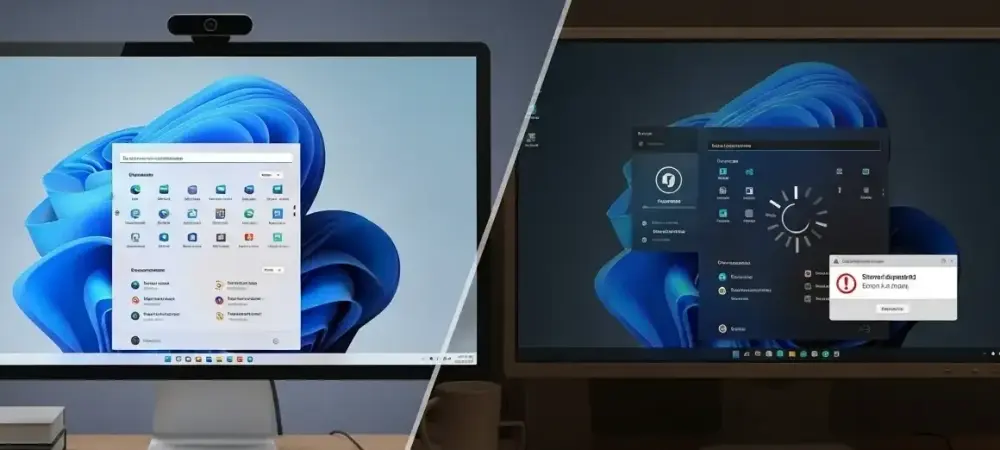
The persistent pursuit of a friction-free computing environment has reached a significant milestone with the release of the KB5089573 preview update for Windows 11, signaling a shift toward unprecedented system agility. This deployment represents more than just a routine patch; it is an answer to long-standing user demands for a snappier interface and more robust hardware management. By targeting the very heart of the user experience—the core shell—engineers have managed to reduce the micro-delays that often plague modern operating systems during heavy multitasking or after long periods of uptime.
Navigating the Evolution of Speed and System Responsiveness in Windows 11
For several years, the conversation surrounding desktop operating systems has shifted from mere feature density to the quality of interaction speed. While Windows 11 introduced a modern aesthetic, early adopters often noted that the fluidity of the interface did not always match its visual polish. Technical analysts observe that the latest update reflects a maturation of the platform, where the focus has moved from adding new layers to refining the existing architecture for maximum responsiveness and reliability.
The focus on “perceived performance” is particularly notable in this release, as it addresses the subtle lag that can make a powerful machine feel sluggish. Industry observers suggest that these improvements are vital for maintaining user satisfaction in a competitive market where every millisecond counts. By optimizing how the system handles background tasks and prioritizes user-facing elements, the update ensures that the hardware potential of modern processors is fully realized without being hampered by software inefficiencies.
Breaking Down the Core Innovations Within the KB5089573 Preview Update
The KB5089573 update arrives as a preview version, meaning it serves as a precursor to the standard monthly quality improvements. It is currently available to those who actively seek out updates in the settings menu, providing an early look at the performance-centric changes planned for a broader audience. This phased approach allows for the collection of high-confidence device targeting data, which is essential for the secure rollout of new components like updated Secure Boot certificates. A significant portion of the update addresses fundamental system security through enhanced Secure Boot management. Administrators now have more control over how service data is transmitted to central servers, thanks to new Group Policy settings that can limit traffic in restricted environments. This combination of speed enhancements and administrative control suggests a dual-pronged strategy aimed at satisfying both the power user who craves speed and the enterprise manager who requires strict data governance.
Accelerating the Shell Experience: How Microsoft is Tackling Start Menu and Search Latency
The core shell is the primary point of contact between the user and the operating system, encompassing the Start menu, Search, and Action Center. Microsoft has specifically targeted these areas to accelerate app launches and reduce the latency that occurs when opening system menus. Some testers have pointed out that the Start menu now feels more immediate, with fewer frames dropped during animation, which contributes to a more cohesive and professional feel throughout the workday. Search functionality has also received a logic update that prioritizes file discovery even when the user has typed only two characters. This small but impactful change significantly reduces the time spent hunting for documents or applications in a cluttered file system. Furthermore, the Action Center and clipboard history have been tuned for better navigation, ensuring that utility tools do not become a bottleneck for productivity during intense creative or administrative sessions. Stability in the underlying explorer.exe process is another highlight, particularly when users interact with the input switcher or the touch keyboard on the sign-in screen. These components often suffer from minor glitches that can disrupt the login process or cause the desktop interface to reload unexpectedly. By hardening these specific areas, the update provides a more resilient platform that handles high-frequency input changes with greater grace and fewer errors.
Expanding Connectivity Horizons: The Practical Benefits of Shared Audio and USB4 Resiliency
One of the more innovative features introduced in this cycle is Shared Audio, which leverages Bluetooth LE Audio broadcast technology to permit two individuals to listen to the same stream from a single PC. This capability is designed for scenarios such as travel or collaborative study, allowing two sets of supported headphones to receive synchronized audio without the need for external hardware splitters. It represents a modern approach to connectivity that acknowledges the social and collaborative nature of contemporary computing. On the hardware side, the update brings substantial improvements to the USB3 and USB4 stacks. Users who frequently utilize docks and hubs will find that external displays now activate more consistently when the system wakes from sleep, a common pain point for professionals with multi-monitor setups. The added resiliency in the USB3 stack helps the system recover from hardware faults that might otherwise lead to device disconnects, ensuring that peripherals remain functional under varied electrical conditions.
Visibility in the Age of AI: Monitoring NPU Performance and Neural Engine Workloads
As specialized hardware for artificial intelligence becomes more prevalent, the need for transparent monitoring has grown. Task Manager now features dedicated columns for Neural Processing Units, allowing users to track NPU usage, dedicated memory, and shared memory in real-time. This level of detail is crucial for developers and enthusiasts who need to understand how AI-driven applications are taxing the system’s specialized silicon. By displaying these workloads on the Performance page, the operating system provides a comprehensive view of all AI-related activity across the entire hardware suite. Additionally, the inclusion of an Isolation column helps identify apps running in AppContainers, providing a clearer picture of the security boundaries within which various processes are operating.
Enhancing System Integrity and Power Hygiene Through Optimized Biometrics and Sensors
Power management remains a critical concern for mobile users, and this update introduces power hygiene improvements to the Human Interface Device stack. Specifically, it prevents failed or misbehaving HID devices from initiating unnecessary power transfers during standby, which can lead to battery drain. By tightening the rules for how peripherals interact with the system during low-power states, the update helps extend the portable life of laptops and tablets. Biometric authentication has also been optimized to ensure that resuming from Modern Standby is as fast as possible. The Windows Biometric service has been refined to eliminate the slight delay sometimes experienced when using face or fingerprint recognition after the screen has been off. Furthermore, the sign-in screen now defaults to the most recently used biometric method while still allowing for PIN fallback, striking a balance between convenience and the need for secure, multi-attempt authentication protocols.
Strategic Recommendations for Maximizing the Benefits of the KB5089573 Release
To take full advantage of these performance gains, users must navigate to the Windows Update section and manually initiate the download of the preview package. Since these changes are part of a gradual rollout, some features might not appear immediately after the first reboot. It is also recommended that system administrators review the new Group Policy settings for camera options, as the Multi-App Camera feature allows multiple programs to access a single stream, which can be a boon for multitasking.