

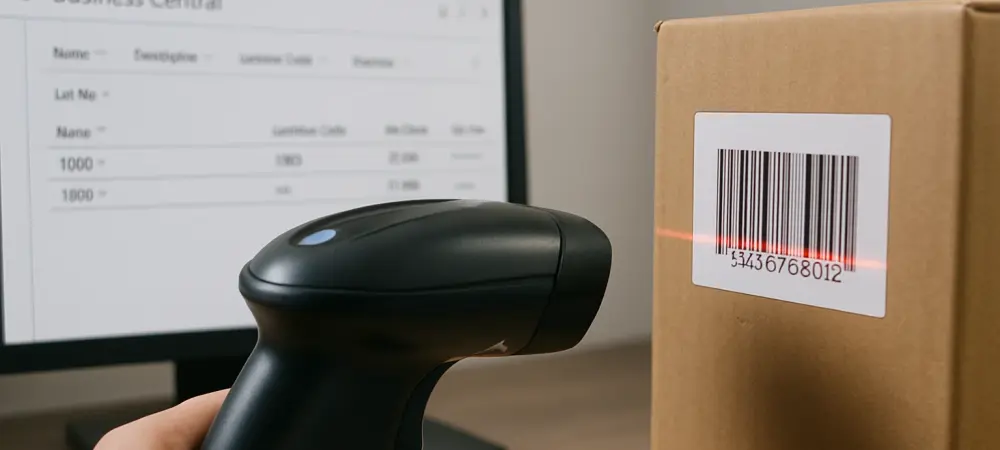
A single failed barcode scan can disrupt an entire warehouse operation, cascading from a momentary delay into significant logistical bottlenecks and widespread user frustration. The barcode, a seemingly simple image on a label, is the linchpin of modern inventory and data management within Microsoft Dynamics 365 Business Central. When it fails, processes grind to a halt, manual workarounds introduce errors, and efficiency plummets. This is why achieving a perfect scan every time is not a luxury but a fundamental operational requirement.
Transforming a barcode from a static image into a reliable tool for action hinges on a series of best practices that are often overlooked. By focusing on critical factors such as choosing the right barcode format, optimizing its size and resolution, and ensuring its smart placement within report layouts, organizations can eliminate scanning failures. Utilizing a tool like the Barcode Generator PowerTool provides the technical capability, but adhering to these guidelines is what guarantees a seamless and efficient workflow, bridging the gap between the physical warehouse and the digital accuracy of Business Central.
From Image to Action The Importance of Flawless Barcode Scanning
The journey of a barcode begins as a digital image generated within a Business Central report, but its true purpose is realized only when it is successfully scanned, translating that visual pattern into actionable data. A perfect scan is an instantaneous event that triggers a cascade of automated processes, from receiving inventory and picking orders to tracking assets and managing production lines. This seamless transition is critical; any hesitation or failure at this point creates a friction point that multiplies across the organization, leading to operational delays, inaccurate inventory counts, and frustrated employees who are forced to revert to manual data entry.
To avoid these pitfalls, a proactive approach to barcode generation is essential. This guide covers the key best practices that ensure reliability from the very beginning. By deliberately choosing the appropriate format for the data being encoded, carefully calibrating the barcode’s size for optimal readability, and strategically placing it within a document, you can convert a simple image into a dependable trigger for your workflow. Implementing these principles with a tool like the Barcode Generator PowerTool empowers businesses to build a robust system where every scan is a step toward greater efficiency, not a potential point of failure.
Why Barcode Readability is Non-Negotiable for Business Efficiency
At its core, a barcode scanner operates by emitting a light source, which is then reflected back from the light and dark bars or modules of a barcode. The sensor interprets this pattern of reflected light to decode the embedded information. The success of this process is entirely dependent on the clarity and integrity of the barcode image. Factors such as the barcode symbology, which defines the rules for encoding data, the resolution of the printed image, and the presence of an undisturbed “quiet zone” around the barcode directly influence the scanner’s ability to perform this interpretation accurately and at speed.
These technical requirements are why adhering to best practices is not merely a suggestion but a necessity for maintaining operational integrity. In fast-paced warehouse and manufacturing environments, where hundreds or thousands of scans occur daily, even a small failure rate can have a significant cumulative impact. Poorly formatted or distorted barcodes lead to incorrect data capture, which can corrupt inventory records, derail production schedules, and result in costly shipping errors. Therefore, prioritizing barcode readability is a foundational step in safeguarding data integrity and preserving the operational velocity that modern supply chains demand.
A Step-by-Step Guide to Creating Scannable Barcodes
Generating a barcode that scans perfectly every time is a methodical process, not a matter of chance. By breaking down the task into five actionable steps, you can systematically eliminate common points of failure and ensure that every barcode produced from Business Central is optimized for performance. This structured approach addresses everything from the initial selection of the barcode format to the final real-world testing, providing a clear roadmap for creating reliable, high-performing barcodes. Following these steps will build a robust foundation for your data capture processes.
Each stage in this guide focuses on a distinct aspect of barcode creation and implementation, building upon the previous one to create a comprehensive quality control framework. From defining the symbology that best fits your data needs to calibrating the physical dimensions for your specific scanners and label sizes, every detail matters. This process culminates in strategic layout placement and rigorous testing, ensuring that the final printed barcode functions flawlessly in the environment where it will be used daily.
Step 1 Select the Right Barcode Format for the Task
The first and most critical decision in creating a functional barcode is selecting the appropriate symbology, or format. Different business processes and data types have unique requirements, and choosing a format that aligns with those needs is essential for both efficiency and compatibility. A simple item number has far different encoding requirements than a complex shipping label that must comply with global standards. Making an informed choice at this stage prevents downstream complications and ensures the barcode can effectively serve its intended purpose.
A thoughtful selection process involves understanding the capabilities and limitations of common formats. Some are designed for numeric or simple alphanumeric data, while others can handle vast amounts of information or link to digital resources. By matching the barcode type to the specific task, you optimize not only scannability but also data density and utility, ensuring that your labels are as intelligent and functional as the system that generates them.
Code 39 and Code 128 for Simple and Structured 1D Data
For encoding basic alphanumeric identifiers, such as item numbers, serial numbers, or bin locations, Code 39 is a reliable and widely supported choice. Its simplicity makes it a durable workhorse for internal tracking where straightforward data is sufficient. However, when the data requires more structure or must adhere to industry standards, Code 128 and its GS1-128 variant are the superior options. GS1-128 is specifically designed to encode data with Application Identifiers (AIs), which tell the scanning system what kind of information is being captured, such as a lot number, an expiration date, or a shipping container code. This structured format is indispensable for logistics, compliance labeling, and supply chain applications where data context is just as important as the data itself. Using Code 128 or GS1-128 ensures that complex information is captured in a standardized, unambiguous way.
Data Matrix and QR Codes for Complex 2D Data
When label space is at a premium or the amount of data to be encoded is extensive, two-dimensional (2D) barcodes like Data Matrix and QR Codes offer a significant advantage. Data Matrix codes are exceptionally compact and can store a large amount of information in a very small physical footprint, making them ideal for marking small components, electronics, or medical devices where a traditional linear barcode would not fit.
QR Codes, while also capable of storing large amounts of data, are particularly well-suited for applications that involve linking a physical item to a digital resource. Their ability to be easily scanned by consumer-grade mobile devices makes them perfect for encoding URLs that lead to product documentation, marketing materials, or support websites. This capability extends the function of the barcode beyond simple data capture into a gateway for user engagement and information delivery.
Pro Tip Avoid the Modern Trap
While QR Codes are increasingly popular due to their versatility and modern appearance, it is a mistake to default to them without careful consideration. The decision to use a 2D barcode like a QR Code must be validated against your existing hardware and operational workflows. Not all industrial barcode scanners, particularly older models, are equipped to read 2D symbologies.
Before committing to QR Codes for a critical process, confirm that your scanners fully support them and that the workflow is designed to leverage their capabilities. In many internal warehouse scenarios, a well-implemented Code 128 barcode is more reliable and efficient because it is universally compatible with standard laser scanners. Choosing the right tool for the job is more important than choosing the newest one.
Step 2 Calibrate Barcode Size for Maximum Impact
The physical size of a barcode is a critical factor in its scannability, creating a delicate balance between the available space on a label and the resolution required by the scanner. A barcode that is printed too small may not have enough definition for the scanner’s sensor to distinguish between the bars and spaces, resulting in a failed read. Conversely, a barcode that is excessively large may not fit on the label or may require the user to scan from an impractical distance.
Achieving the optimal size requires a precise calibration based on the chosen format, the resolution of the printer, and the capabilities of the scanners being used. Setting the dimensions deliberately, rather than allowing them to be determined by default, is a key step in engineering a reliable barcode. This ensures the final printed output is large enough to be read quickly and accurately from a practical distance, enhancing user efficiency.
Adhere to Minimum Size Recommendations
To guarantee scannability, every barcode symbology has a recommended minimum size that should be treated as a hard floor. Printing below these dimensions dramatically increases the risk of scanning failures. While the ideal size can vary based on your specific printer and scanner combination, adhering to established minimums provides a safe and reliable starting point for your designs.
A clear set of guidelines for common formats helps in making these decisions. For example, a Code 39 barcode often requires a minimum height of 0.3 inches and a width that depends on the data length, while a Data Matrix code should generally be at least 10×10 modules. For QR Codes, controlling the dot size is crucial, with a setting of 4 providing much better resolution and readability than a smaller size. Following these recommendations prevents one of the most common and easily avoidable scanning issues.
Control Size with Precision in Code
Modern tools like the Barcode Generator PowerTool allow for precise control over barcode dimensions directly within the Business Central development environment. Instead of leaving sizing to chance, you can specify parameters that dictate the final output. For instance, when generating a QR code, you can explicitly set the dot size, which directly impacts the overall dimensions and resolution of the barcode. A practical code example illustrates this control: BarcodeGenerator.GenerateQRBarcode(Barcode, SalesLine.”No.”, 4);. In this function call, the final parameter, 4, sets the dot size. Using a value of 4 creates a larger, more resolute, and therefore more easily scannable QR code compared to the default setting. This level of granular control is essential for fine-tuning barcodes to match the specific requirements of your labels and scanning hardware.
Best Practice Use the Test Report
Theory and practice can often diverge, which is why experimentation is a crucial part of the calibration process. Before deploying a new barcode layout into a live production environment, it is essential to test different size settings. Leveraging built-in resources, such as a dedicated test report, allows you to generate and print various barcode sizes quickly and efficiently.
This testing phase enables you to print sample labels with different dimensions and scan them with your actual warehouse hardware. By doing so, you can identify the optimal size that provides the fastest and most reliable scan rate without wasting valuable label stock or disrupting live operations. This empirical approach validates your settings and provides confidence that the chosen dimensions will perform reliably in the real world.
Step 3 Strategically Place Barcodes in Report Layouts
Once a barcode image is generated, its placement and handling within the Microsoft Report Builder layout are paramount to preserving its integrity. The report layout environment can inadvertently distort, clip, or resize the barcode in ways that render it unreadable. Proper configuration of the image properties is not just a cosmetic step; it is a technical requirement for ensuring that what you print is an exact, scannable representation of the data.
Best practices for placement go beyond simple positioning on the page. They involve setting specific properties for the image container to ensure it maintains the barcode’s original aspect ratio and resolution. Furthermore, a well-designed layout accounts for the area immediately surrounding the barcode, keeping it free from other elements that could interfere with the scanner’s ability to isolate and read the code.
Configure Image Properties Correctly
To ensure the barcode image is rendered without distortion, it is crucial to configure its properties correctly within Report Builder. The image container holding the barcode must be set up to pull the data directly and display it as intended. This involves setting the image Source property to “Database,” which tells the report to use the barcode data generated by Business Central.
Equally important are the MIME Type and Sizing properties. The MIME Type should be set to “image/bmp” to ensure proper rendering. Most critically, the Sizing property should be set to “Original Size.” This setting prevents the report from attempting to stretch or shrink the image to fit the container, which would alter its proportions and make it unscannable. Preserving the original dimensions is the key to a successful scan.
Warning Never Clip or Stretch the Image
Altering a barcode’s aspect ratio is the quickest way to make it unreadable. Barcode symbologies rely on precise mathematical relationships between the widths of their bars and spaces. When you stretch a barcode horizontally or vertically, you destroy these relationships, and the scanner can no longer decode the pattern. It is imperative that the barcode’s original proportions are maintained at all costs.
This means that the container holding the barcode in the report layout must be large enough to accommodate the entire image at its original size. If the container is too small, the image will be clipped, cutting off essential parts of the code. If the sizing property is set to “Fit to Size,” the image will be distorted. The only safe approach is to use “Original Size” and ensure the container is sufficiently large.
The Importance of Quiet Zones
Every barcode requires a “quiet zone,” which is an area of blank, unprinted space around its perimeter. This zone acts as a buffer, allowing the scanner’s sensor to clearly identify the beginning and end of the barcode without interference from nearby text, lines, or other graphics on the label. Without an adequate quiet zone, the scanner may mistake an adjacent element as part of the barcode, leading to a failed or incorrect read.
When designing your report layout, you must intentionally leave sufficient white space on all four sides of the barcode. A general rule of thumb is that the quiet zone should be at least ten times the width of the narrowest bar in the code, or a quarter of an inch, whichever is greater. Proactively designing this buffer into your labels is a simple but highly effective way to improve scanning reliability.
Step 4 Leverage Pre-Built Sample Reports to Accelerate Development
Creating a perfectly formatted report layout from scratch can be a time-consuming and error-prone process. A more efficient approach is to start with a proven template that already incorporates the best practices for barcode placement and sizing. The Barcode Generator PowerTool includes a set of pre-built sample reports that are designed specifically to serve as reliable starting points for your custom development.
By using these samples, you can avoid common mistakes and significantly accelerate your development cycle. These reports provide real-world examples of how to correctly embed a barcode, configure its properties, and manage quiet zones within a layout. Instead of reinventing the wheel, you can adapt these proven designs to fit your specific business needs, saving time and ensuring a higher-quality result from the outset.
Adapt Proven Layouts for Your Needs
The library of sample reports offers templates for a variety of common business documents, providing a solid foundation for many different use cases. Key examples include the “Generic Item Barcode Label,” which is ideal for product labeling, and the “Warehouse Receipt with Barcode,” which demonstrates how to integrate barcodes into larger, more complex documents. Other useful templates, like the “Generic Bin Label,” are tailored for specific warehouse management tasks.
These reports are not just examples; they are functional, well-designed layouts that have been built with scannability in mind. By modifying one of these existing reports, you can leverage the embedded best practices while focusing your efforts on customizing the data fields and branding to match your requirements. This approach minimizes technical risk and allows you to deploy reliable, barcode-enabled documents more quickly.
Step 5 Conduct Rigorous Real-World Scan Testing
The final and most crucial step in the process is to move from the digital design to the physical world and rigorously test the printed barcodes. A barcode that looks perfect on screen and even scans correctly from a high-resolution PDF is not guaranteed to work when printed on a thermal label and scanned with a handheld device in a busy warehouse. Real-world testing is the only way to validate that your entire process—from data generation to printing to scanning—is successful.
This validation phase must involve the actual hardware, software, and materials that will be used in daily operations. Testing under controlled, ideal conditions is insufficient. The goal is to confirm that the barcodes are robust enough to perform reliably in their intended environment, accounting for factors like lighting, print quality variations, and the specific scanners your team will use.
Create a Pre-Launch Testing Checklist
To ensure a thorough validation process, it is helpful to use a pre-launch testing checklist. This checklist should guide you through verifying all the critical performance attributes of the barcode. Key factors to validate include the scan speed and first-read success rate, which are crucial for user productivity. You should also assess the error rate to ensure data accuracy.
Furthermore, the checklist should prompt testing under various environmental conditions. Check how well the barcodes scan under the bright glare of warehouse lighting or in dimly lit areas. Test them on the different types of label materials you plan to use, as surface reflectivity can impact performance. Simulating these real-world challenges during testing helps identify and resolve potential issues before a full-scale rollout.
Validate with Specific Mobile Applications
If your operational workflow relies on specific mobile WMS applications, such as Warehouse Insight or WMS Express, it is imperative that your testing is conducted using these exact apps. Different applications can have their own nuances in how they interact with a device’s scanner or camera, and compatibility must be explicitly confirmed. A barcode that scans perfectly with a device’s native camera app may not perform as well within the context of your specialized warehouse management software.
Testing directly within the mobile application environment ensures that the entire technology stack works together seamlessly. This step validates not only the physical barcode but also the end-to-end data capture process, from the moment the user pulls the trigger on the scanner to the point where the data is successfully processed within the WMS application and Business Central.
Best Practices at a Glance Your Quick Reference
To ensure consistent success, it is helpful to have a concise summary of the most critical best practices for generating reliable barcodes. This quick reference serves as a checklist to consult during the design and deployment of any barcode-enabled report in Business Central, reinforcing the foundational principles of scannability.
Following these core tenets will dramatically reduce scanning errors and improve operational efficiency.
- Choose the format that matches your data needs, such as Code 128 for structured logistical data or Data Matrix for applications requiring high data density in a small space.
- Ensure the barcode is large enough for your scanner to read easily; always use a test report to experiment with different sizes before finalizing the layout.
- Set the image sizing property to “Original Size” within the report layout to prevent any form of distortion that would corrupt the barcode’s structure.
- Always leave a clear “quiet zone” of white space around the entire barcode to prevent interference from other report elements.
- Test the final printed labels with your actual scanning devices and mobile applications under real-world conditions before going live with the report.
Beyond the Barcode Building a More Resilient Workflow
Implementing these technical best practices for barcode generation contributes to a much broader and more significant organizational goal: the creation of an efficient, error-resilient, and scalable operational workflow. Reliable barcode scanning is not an end in itself but a means to achieving a higher level of automation and data accuracy across the business. When every scan is successful, the friction associated with manual data entry and error correction is eliminated from the system.
This increased reliability has a ripple effect throughout the entire supply chain. It accelerates key processes, from the moment goods are received at the loading dock to the final confirmation of a shipped order. By minimizing human error and providing real-time data updates to Business Central, a robust barcode system builds a foundation of trust in your inventory and operational data. This, in turn, enables better decision-making, more accurate forecasting, and a more agile response to changing business demands.
Finalize Your Barcode Strategy and Take Action
Ultimately, the readability of a barcode was a foundational element of any successful Business Central implementation in a logistics or manufacturing setting. The integrity of the entire data capture system rested on this simple yet critical function. By applying these best practices, organizations successfully moved beyond intermittent scanning failures and toward a state of consistent operational excellence.
With a clear strategy in place, the immediate next steps were practical and action-oriented. Teams utilized tools like the Barcode Generator demo report to experiment with different formats and sizes in a safe environment, refining their layouts before deployment. For more detailed guidance, they explored the available Knowledge Base, which offered extensive documentation and sample code to address more complex implementation challenges and finalize their barcode strategy.